Site Coordinator Organizations Tab.mp4
The Organizations tab shows the school/org unit(s) tied to your administrator account, along with their parent organization in a hierarchy. For a typical site coordinator this list is short (often just your own school), since it reflects only the org units you have visibility into.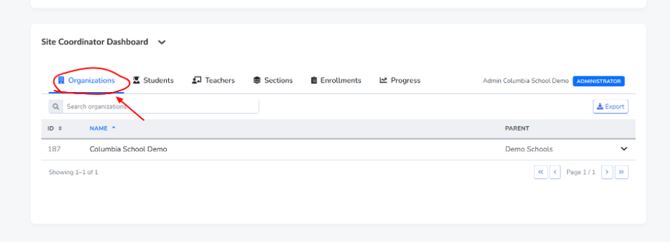
Open the Site Coordinator Dashboard widget on the Scholis homepage and click the “Organizations” tab. The table shows ID, Name, and Parent for each organization.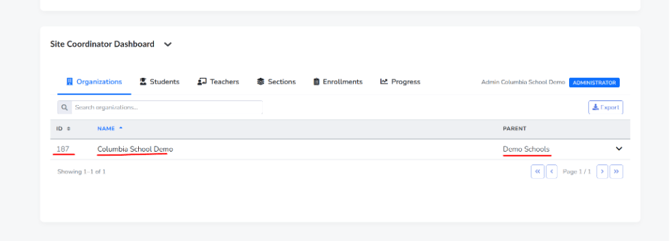
Type into the search box above the table to filter by organization name; results filter live as you type.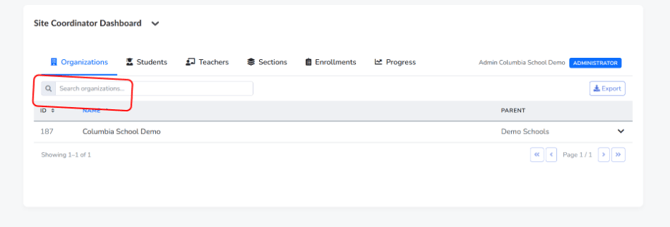
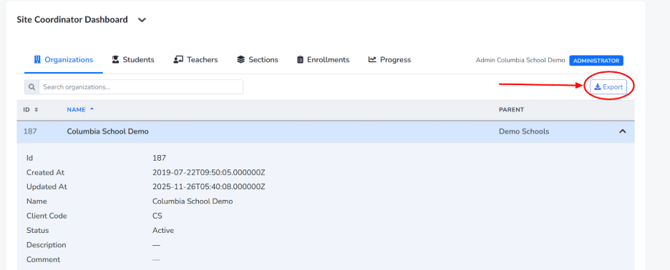
Click the chevron on the right side of a row to expand an inline detail panel. This reveals every stored field: internal ID, creation/update timestamps, name, client code, status, branding, phone, full mailing address, contact email, and the external school ID, in addition to the parent org already shown in the table. Click the chevron again to collapse the row.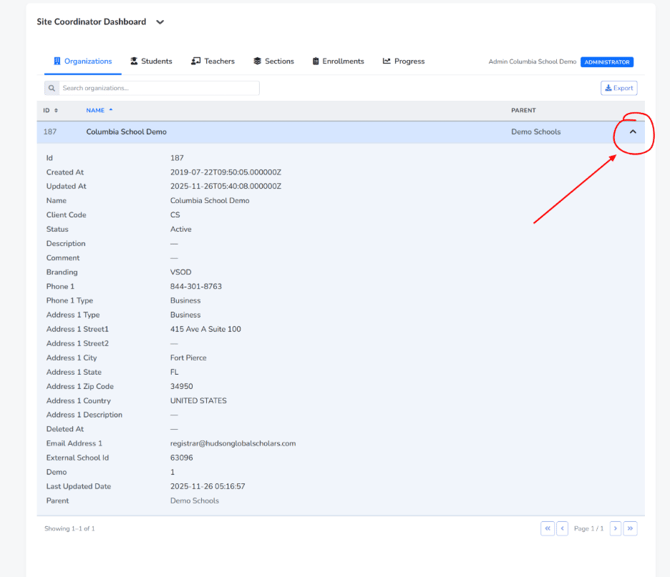
The Export button in the top-right lets you download the current table view. Because this can include contact information for the organization, only export when there is a legitimate, approved reason to do so.