1. The Five Tabs
|
Tab |
What It Shows |
Best Used For |
|
Organizations |
School/org units you oversee, with ID and parent organization. |
Confirming which site or campus you're managing. |
|
Students |
Every enrolled student — ID, username, full name. |
Searching by name; exporting a full student list. |
|
Teachers |
Teacher ID, name, and email address. |
Quickly finding a teacher's contact info. |
|
Sections |
Every course section — ID, name, course code, status. |
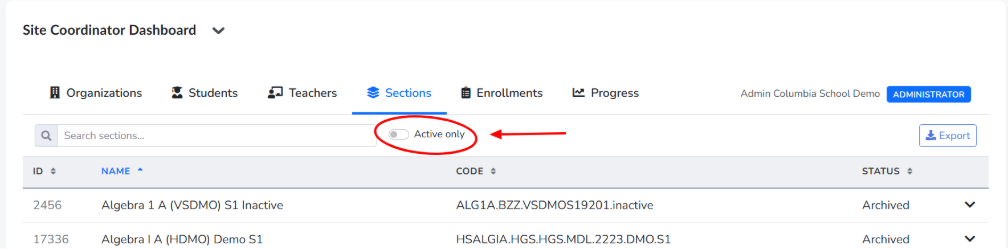
"Active only" toggle filters out archived sections. |
|
Enrollments |
Student-to-section enrollments — dates, status, grade, pacing. |
"Active only" / "At Risk only" toggles to spot at-risk students fast. |
2. Common Actions
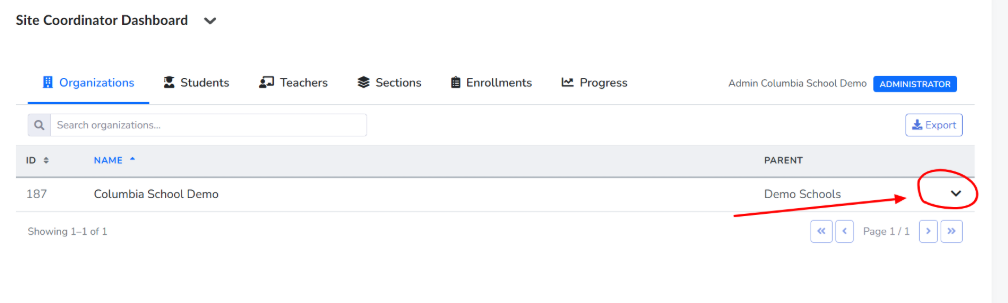
- Expand a record: Every row has a small arrow you can click to expand full detail fields for that record.
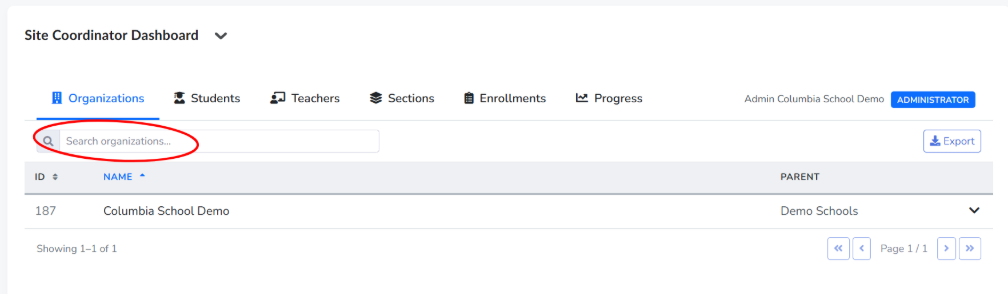
- Search: use the search box at the top of any tab to find a specific student, teacher, or section by name.
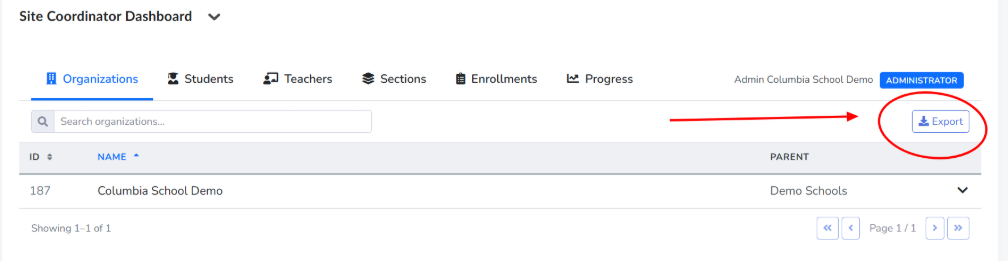
- Export data: use the Export button (top right of every table) to download the current view as a file.
- Filter: on Sections, use "Active only" to hide archived sections; on Enrollments, use "Active only" or "At Risk only" to narrow the list.
- Contact Customer Support with the tab name, search term, and expected result.
- Include a screenshot of the dashboard view where possible.
Troubleshooting
|
Issue |
What To Do |
|
A student or teacher is missing from a tab. |
Check the "Active only" toggle on Sections or Enrollments — inactive records are hidden by default. |
|
Export button doesn't produce a file. |
Try a different browser or clear the browser cache; escalate if the issue persists. |
|
Search returns no results for a record you expect to exist. |
Confirm spelling and that the record belongs to an org unit you have access to under the Organizations tab. |
Escalation Path
If an issue isn't resolved using the steps above:
- Contact Customer Support with the tab name, search term, and expected result.
- Include a screenshot of the dashboard view where possible.