1. Steps
1. Click "New Announcement" on the Announcements widget on your homepage.

2. Give it a headline and write the body using the rich text editor. 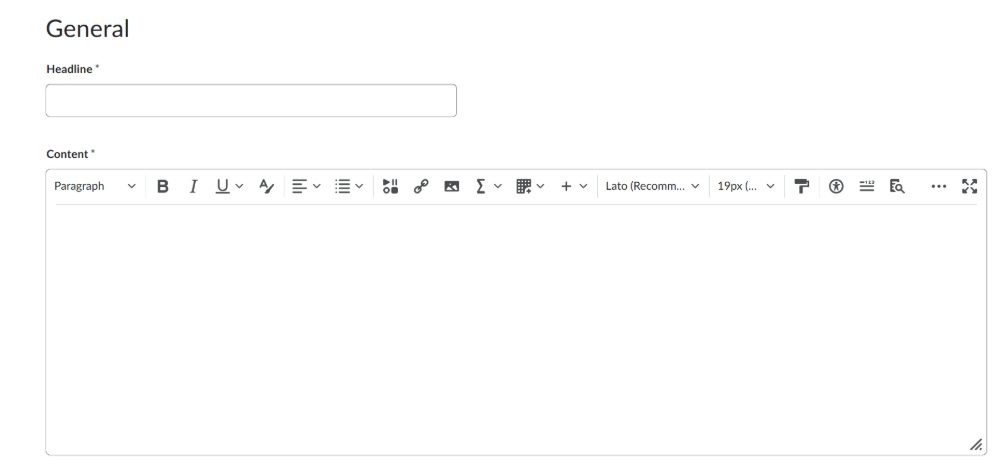
3. Choose visibility under "Make announcement available to," selecting which org units (schools/campuses) should see it. 
4. Optional: set an end date so the announcement expires automatically, and attach a file if needed. 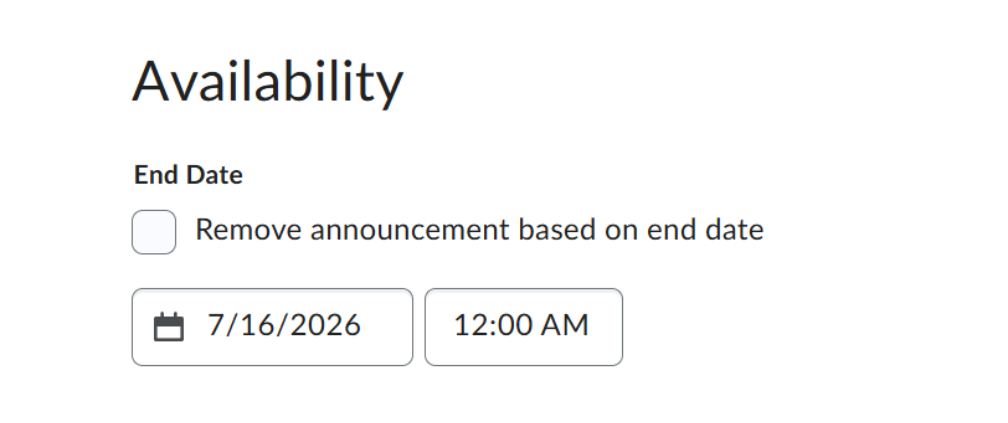
5. Publish or Save as Draft. Published announcements appear immediately to the org units you selected; drafts are saved for later editing. 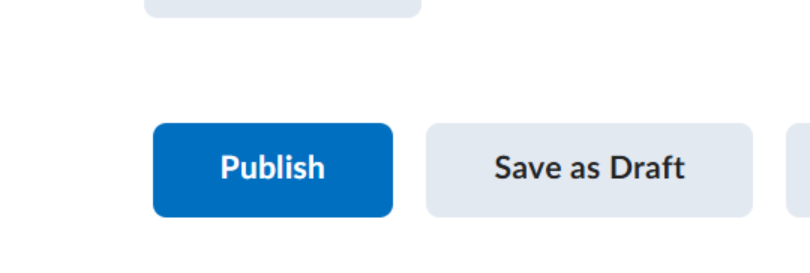
2. Tips
- Set an end date for anything time-sensitive so it doesn't linger after it's no longer relevant.
- Double check the org-unit visibility selection before publishing — this is the most common source of an announcement reaching the wrong audience.
- Use Save as Draft if you want a second reviewer to check the announcement before it goes live.
- Contact Customer Support with the announcement title and a description of the issue.
- Include a screenshot of the error or unexpected behavior where possible.
Troubleshooting
|
Issue |
What To Do |
|
An announcement isn't visible to a school that should see it. |
Edit the announcement and recheck the org units selected under "Make announcement available to." |
|
An attached file won't upload. |
Confirm the file is under the platform's size limit and in a supported format; try a different browser if the issue persists. |
|
A published announcement needs to be corrected. |
Reopen it from the Announcements widget and edit directly — changes apply immediately. |
Escalation Path
If an issue isn't resolved using the steps above: