1. The Four Status Buckets
At the top of the Progress tab, you'll see counts of students in four buckets: Performing Well, Needs Attention, At Risk, and Zero Work. Below that is a searchable table of every student's course, teacher, grade, pacing, and assignment completion. 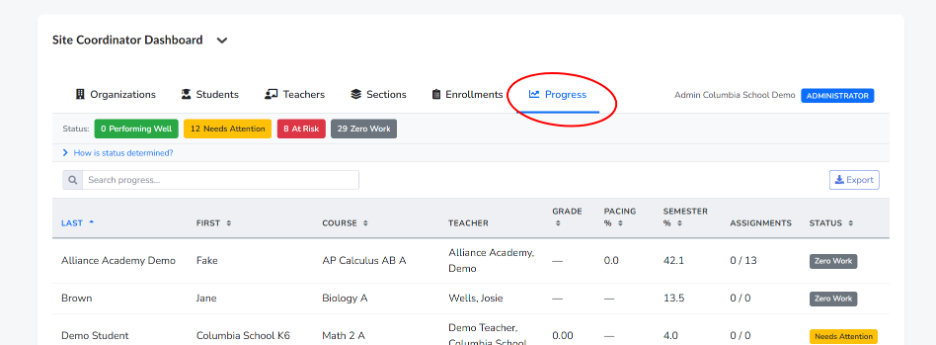
2. How Status Is Determined
How is status determined?
Click the link of the same name on the Progress tab to see the exact logic: each student's grade percentage and pacing percentage are compared against how far the semester has progressed (Early / Mid / End), and the student is colored accordingly. 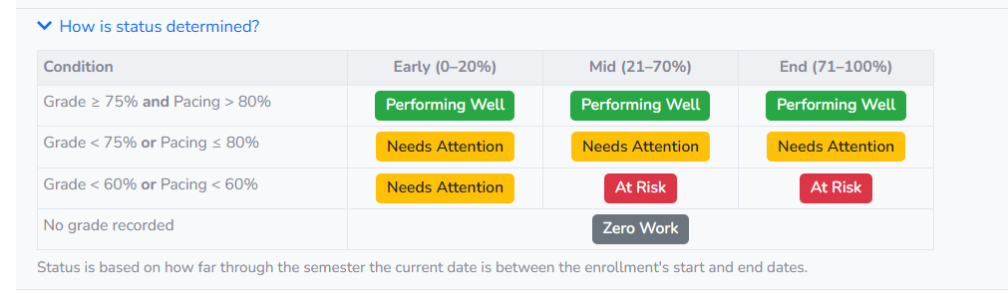
3. Suggested Workflow
1. Check the four bucket counts weekly to spot shifts in At Risk or Zero Work numbers.
2. Filter or search the detail table to drill into a specific course, teacher, or student.
3. Export the table if you need to share it outside the platform or track it over time.
4. Follow up with the teacher for any student who has moved into At Risk or Zero Work.
Troubleshooting
|
Issue |
What To Do |
|
A student's status doesn't match your own calculation. |
Recheck the semester stage (Early/Mid/End) via "How is status determined?" — status is relative to elapsed semester time, not a fixed grade cutoff. |
|
The Progress tab is slow to load. |
Try narrowing your search or filtering before exporting; large schools may take longer to render the full table. |
|
A student who should be listed doesn't appear. |
Confirm the student has an active enrollment |
Escalation Path
If an issue isn't resolved using the steps above:
- Contact customer support with the student name, course, and expected status.
- Include a screenshot of the Progress tab where possible.