Getting Started
The course home page is created each time a course section is opened, and students are enrolled for specific school or course section for a school (when there are multiple groups of students). Here the teacher can post news, see a list of submitted assignments, update their teacher information, view progress and grades, and more. This guide will walk through all the information in the navigation bar.
Step 1: Course Home Overview
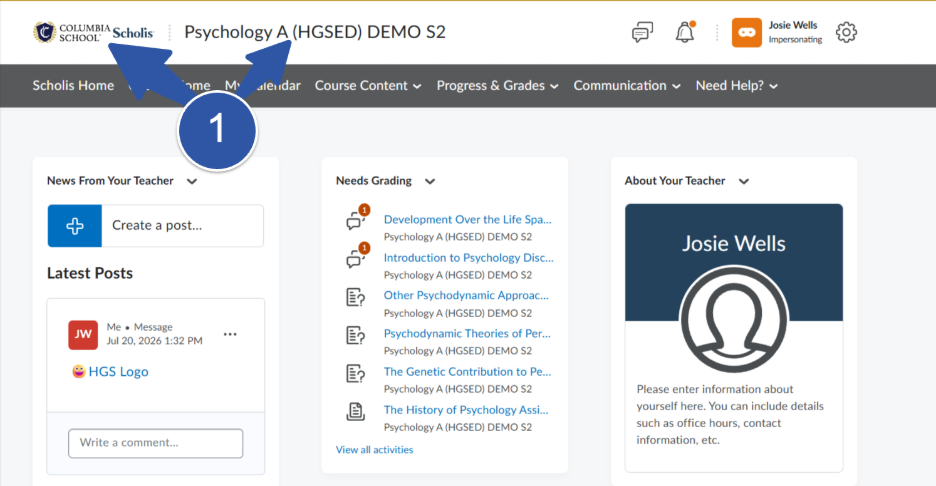
When you select a course title from your Scholis Home page, you will be directed to the course home page for that specific course title. On the course home page, you will see the brand of the school that this course section was created for along with the title of the course.
Important Note: You will know you are on a course home page as the navigation bar turns grey.
Step 2: Discussions and Alerts
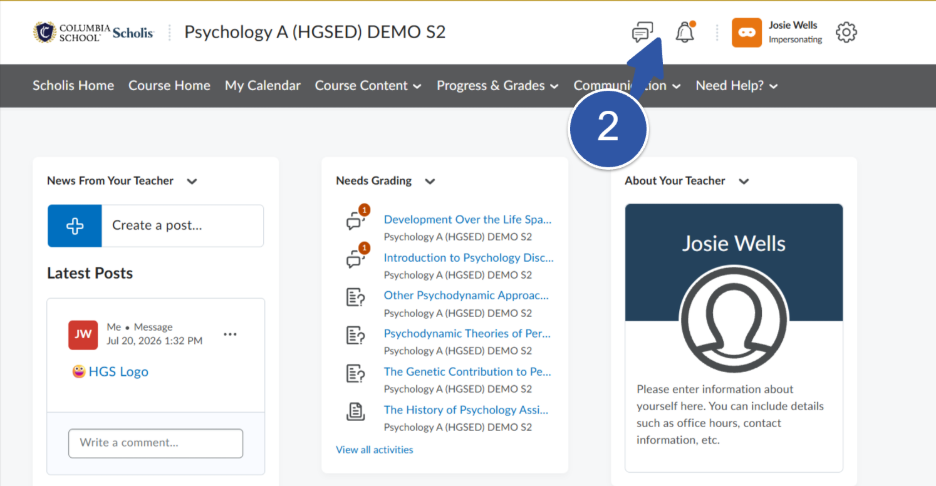
There is a list of important class discussions that you initiate with students (these are not to be confused with the discussion assignments in the course for a grade) and notifications for this course.
Step 3: Scholis Home
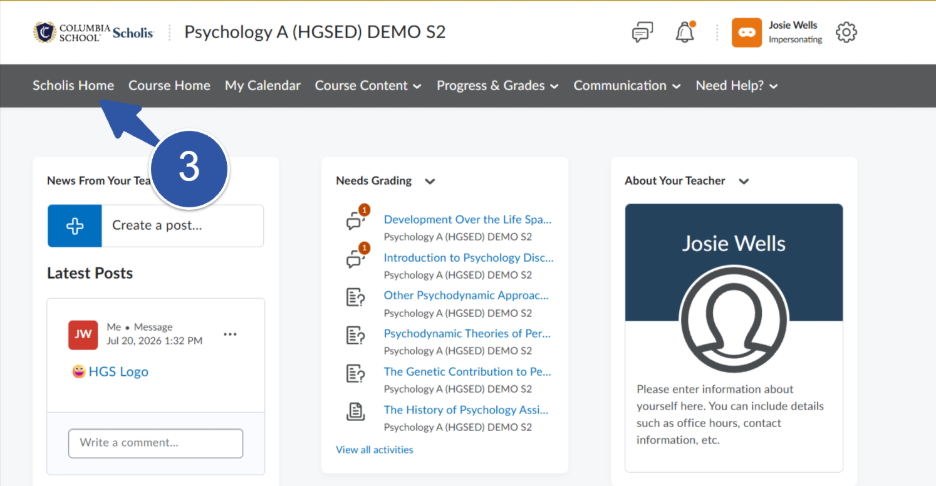
You can always return to the Scholis Home page. Remember that you are on a course home page when the navigation bar turns grey.
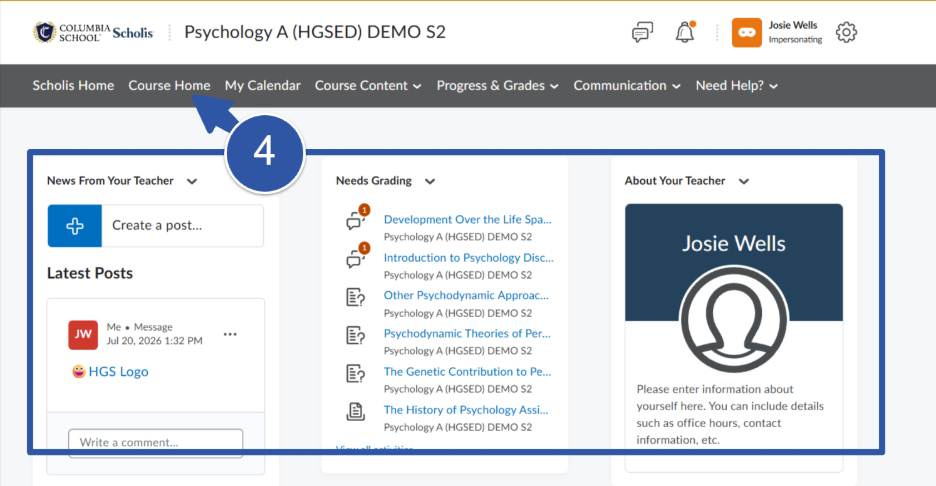
Step 4: Course Home
The course home page provides the following information:
- News from Your Teacher: (This is where you post news for your students in this class.)
- Needs Grading: (This is a list of assignments that have been submitted by the students in this class and need to be graded.)
- About Your Teacher: This is a quick introduction of you to let students know who your are. (You will see how to update this section for each course.)
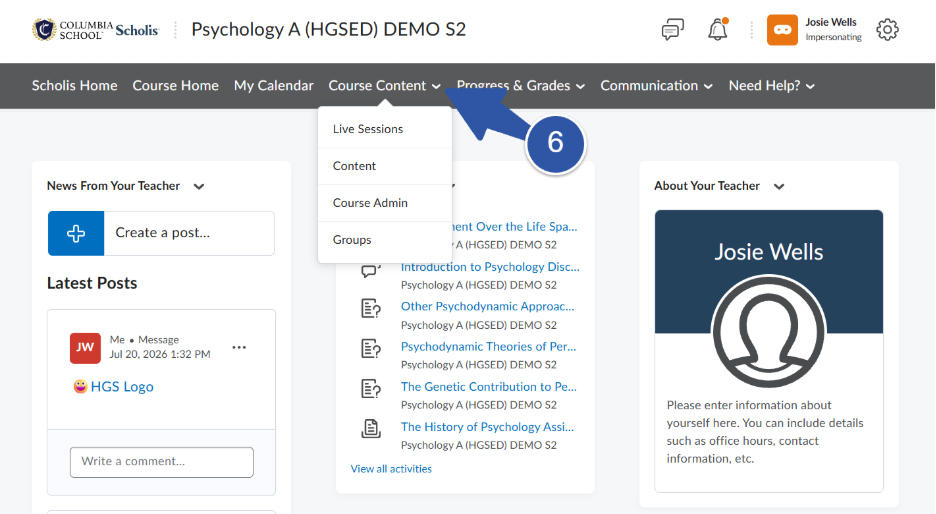
- Live Sessions: This page has the link to launch the Live Class sessions and a hyperlink to the recorded sessions for students.
- Content: This is the course lessons and materials.
- Course Admin: This provides tools for you to facilitate this specific course title.
- Groups: This allows you to create groups for this course section.
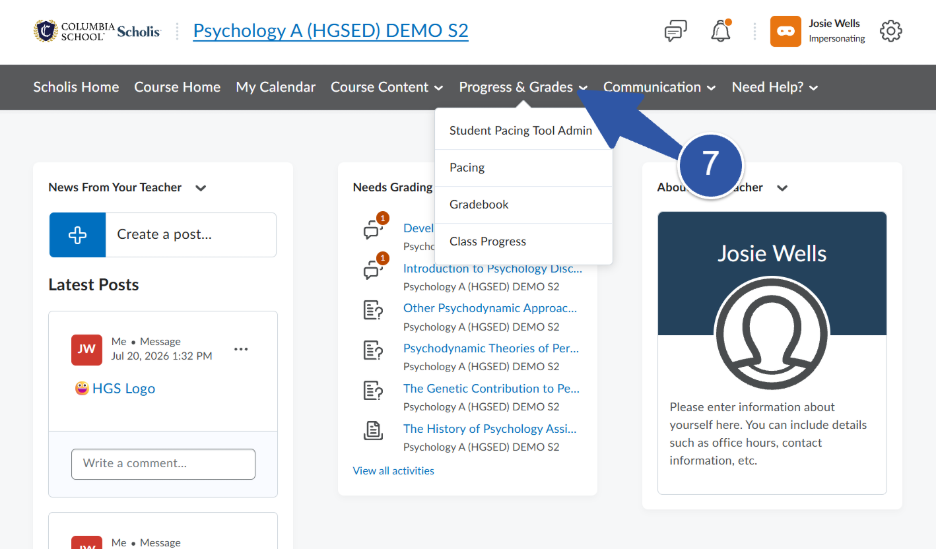
- Student Pacing Tool Admin: Scholis has a customized pacing tool to monitor student’s progress in their courses. This is the teacher admin tool for it.
- Pacing: This is the pacing tool of this specific course that will enable you to monitor student progress.
- Gradebook: This is the gradebook for the course with all active enrollments listed.
- Class Progress: This is a summary of the class progress for this course.
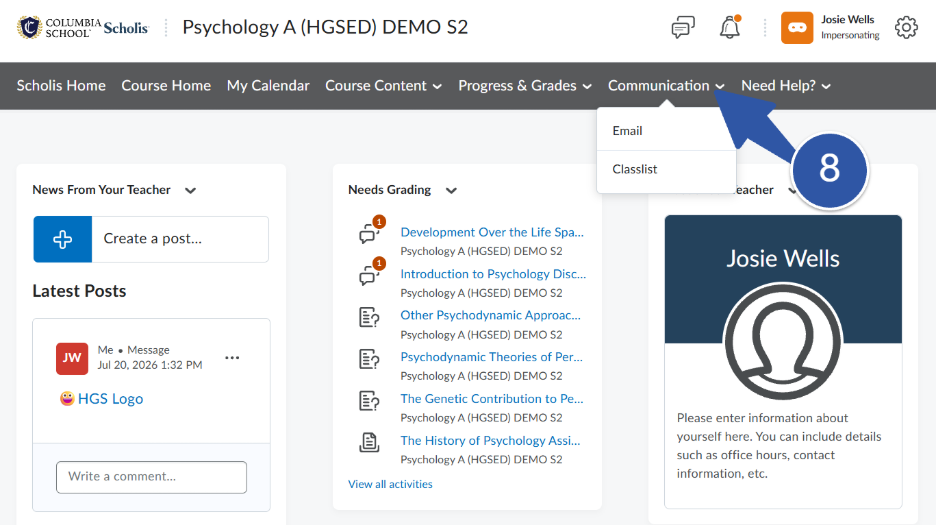
- Email: This is the email system to send and receive messages to your students.
- Classlist: This provides a list of all active students in this course.
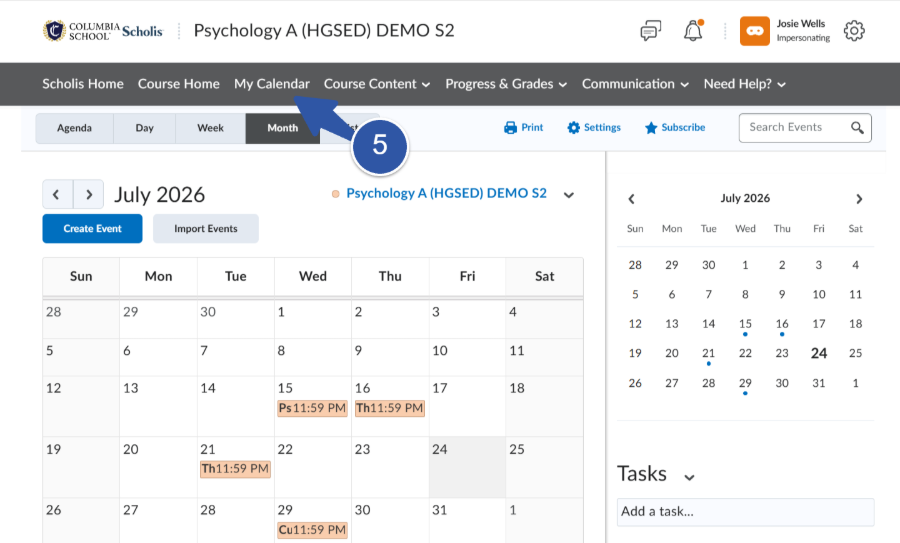
Step 5: My Calendar
This is the calendar of events and assignments due for this course. Each assignment is added to the calendar. There is an additional “My Calendar” guide that will detail how to use all the features of this tool.
6. Course Content*
The course content lists all the materials and resources for this course title. You will find pages for:
*There is a guide for each one of these pages that will detail how to utilize the features and tools.
7. Progress & Grades*
This tab shows the following tools to monitor student progress and grades in this course:
*There is a guide for each one of these pages that will detail how to utilize the features and tools.
8. Communication*
These are the key tools for communication. From this dropdown menu, you will find the following:
*There is a guide for each one of these pages that will detail how to utilize the features and tools.