How to View Course Rosters.mp4
1. Open the course you want to view from the "My Courses" widget on the homepage. 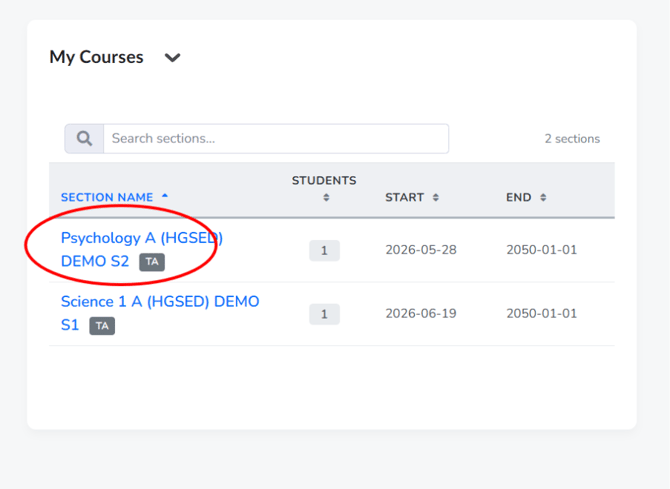
2. In the course navigation bar, click "Communication".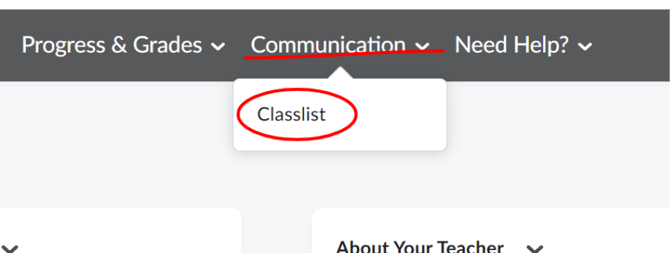
3. Select "Classlist" from the dropdown menu. 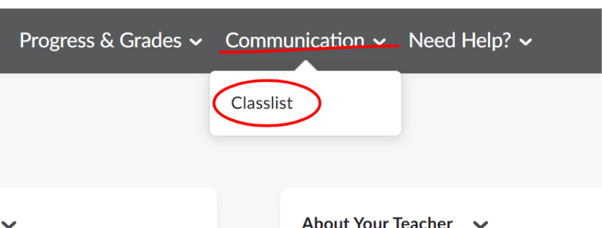
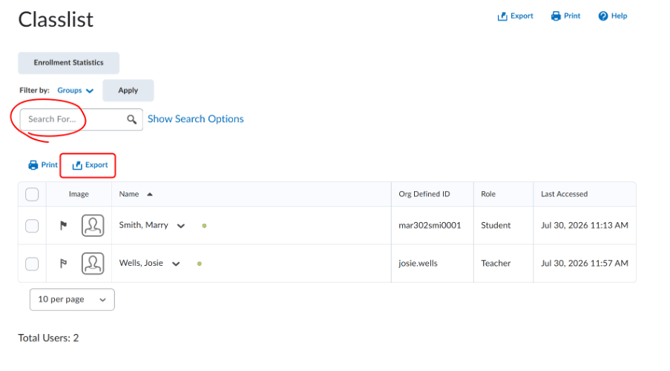
4. The Classlist page displays every user enrolled in the course, including their photo, name, Org Defined ID, role (Student, Teacher, etc.), and last accessed date. 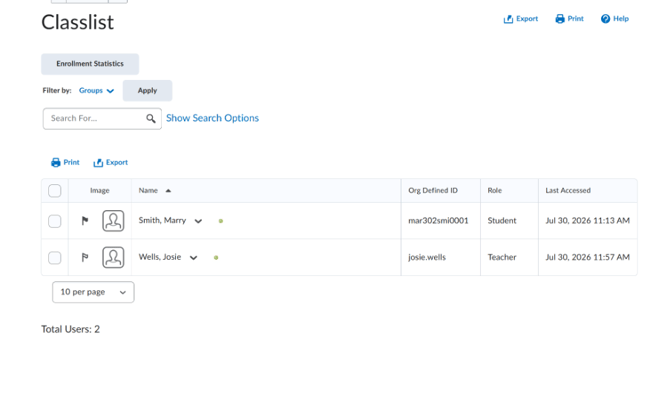
5. Use the "Search For..." box or "Show Search Options" to filter the roster, or click "Export" to download the list.