Reference guide for the Brightspace Pulse mobile app. Updated July 2026.
OverviewBrightspace Pulse is our mobile companion app for Scholis. It gives learners a single view of course calendars, upcoming work, grades, and announcements, and sends real-time alerts when classes change or new content and grades are posted. This document outlines the app’s technical requirements and recommended best practices for day-to-day use.
Platform Compatibility- Available in the United States, Canada, Europe/Middle East/Africa, and Asia-Pacific (Singapore and Australia).
- Supports 15 languages, including English, French, German, Spanish, Portuguese, Arabic, Japanese, Korean, and both Simplified and Traditional Chinese. Pulse follows the device’s language setting rather than the language set in Brightspace.
- Android 6.0 or later on phones and tablets
- iOS 13.0 or later on iPhone, iPad, and iPod touch
We recommend running the latest version of a supported operating system for the best experience. The app is downloaded from the Apple App Store or Google Play Store and generally updates monthly, occasionally mid-month for urgent fixes.
Best PracticesStaying on top of coursework
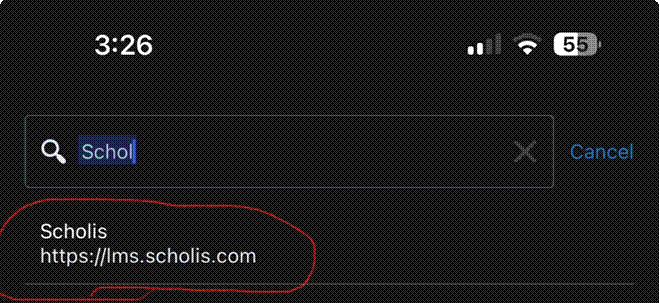
- Search for the Scholis platform in the list of institutions and select it to log in.
- Check the Pulse home screen daily for the weekly and "upcoming" views so nothing upcoming gets missed across courses.
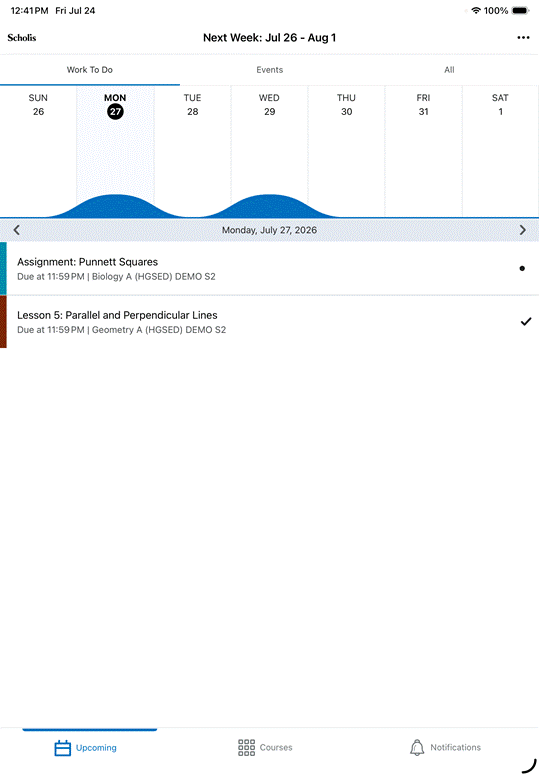
- Use the schedule/calendar view to plan ahead for assignments and quizzes rather than relying only on same-day reminders.
- Remember that new items typically don't surface until an instructor creates or updates something in Scholis, so don't assume "no notifications" means "no updates yet" early in a course.
Notifications Best Practices
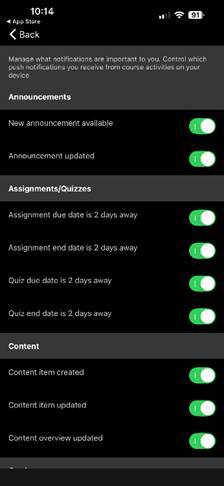
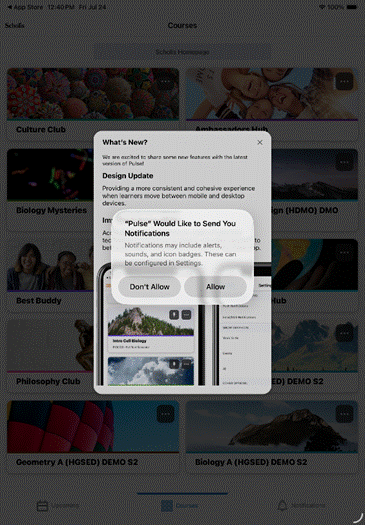
Pulse sends push notifications for announcements, activity feed posts, grades, quiz/assignment reminders, and content updates.
- Turn on push notifications for Announcements, Grades, Content, and Activity Feed so time-sensitive updates (canceled classes, room changes, new grades) arrive in real time.
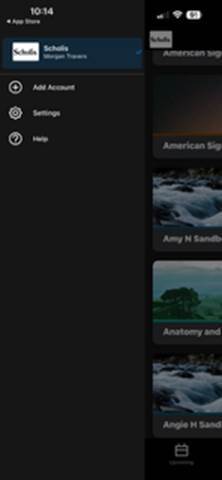
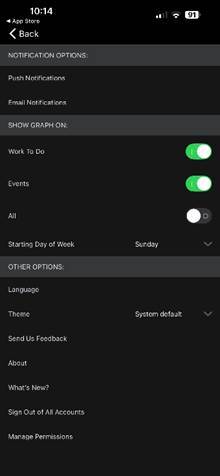
- Review notification settings under the organization icon > Settings > Push Notifications, and customize which types are enabled rather than leaving defaults unchecked.
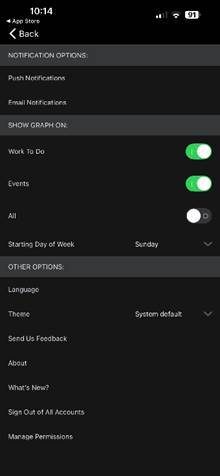
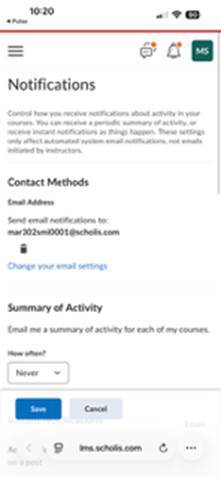
- Set up email notifications separately (Settings > Email Notifications) for anything you want as a backup channel outside the app.
- Subscribe to relevant discussion topics from the Discussions tool in Scholis itself, since Pulse only sends subscription/@-mention alerts for topics you've already subscribed to there.
- Keep in mind quiz/assignment due-date reminders default to two days before the due or end date, so build in extra personal buffer if you tend to start early.
- Login issues: confirm Pulse is enabled for the organization (lms.scholis.com) and that credentials match those used on the Scholis website; contact Customer Supportif problems persist.
- Missing dates or content: verify an instructor has actually added due dates or content, check the internet connection, and refresh.
- Missing notifications: confirm subscription settings in the Discussions tool for reply notifications, and check with the organization if browser notifications work but app notifications do not.
- Blank or unreadable files: the file type may not be supported on the device; try opening it in a full browser instead.