Getting Started
The Content page (found under Course Content > Content in the top navigation) is where your course materials live. It shows your full table of contents on the left and lets you open any module or topic to review exactly what students will see. Use this page to browse your lessons, check student completion progress, and manage a few related settings—like availability dates and usage reports—all from one place.
Step 1: Browse and Open Your Course Content
The left panel shows your table of contents, organized into modules and topics. Here's how to find and open what you need:
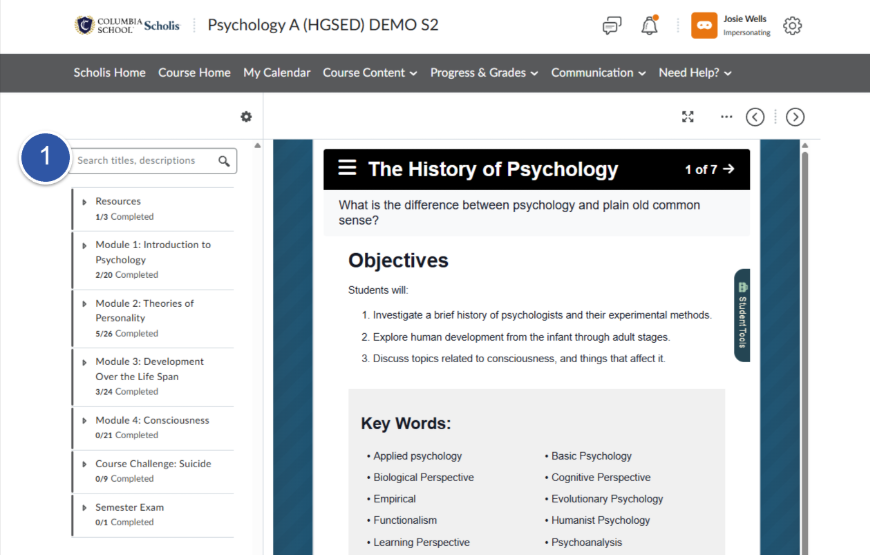
- Use the Search titles, descriptions box to quickly find a topic by name.
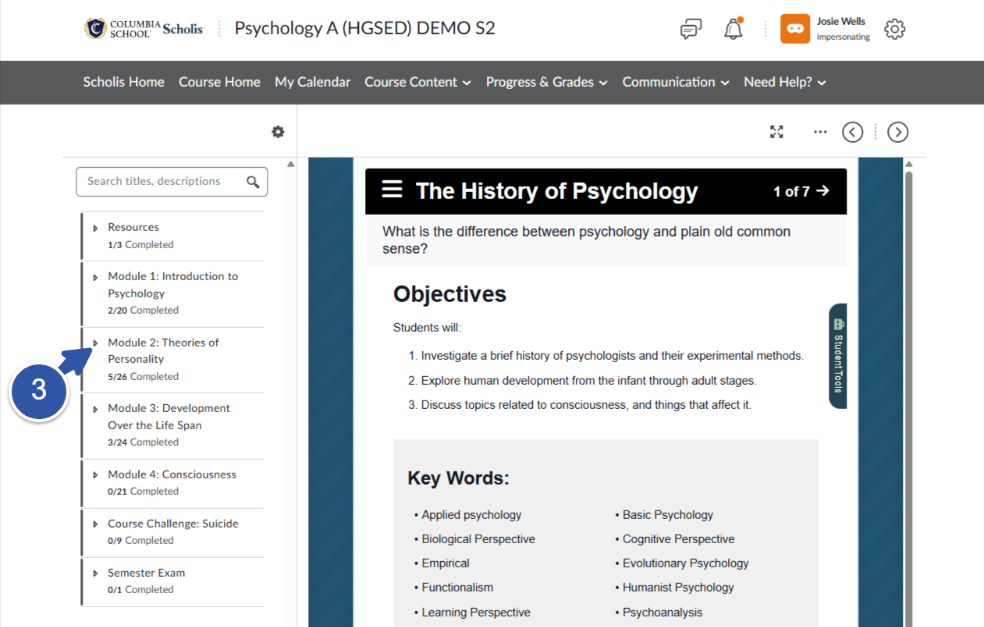
- Select the arrow beside a module name, such as Module 1: Introduction to Psychology, to expand or collapse its list of topics.
- Select any topic title, such as The History of Psychology, to open it in the viewer on the right.
- Select the right arrow (>) at the top of the viewer to move to the next topic.
- Select the left arrow (<) to move back to the previous topic.
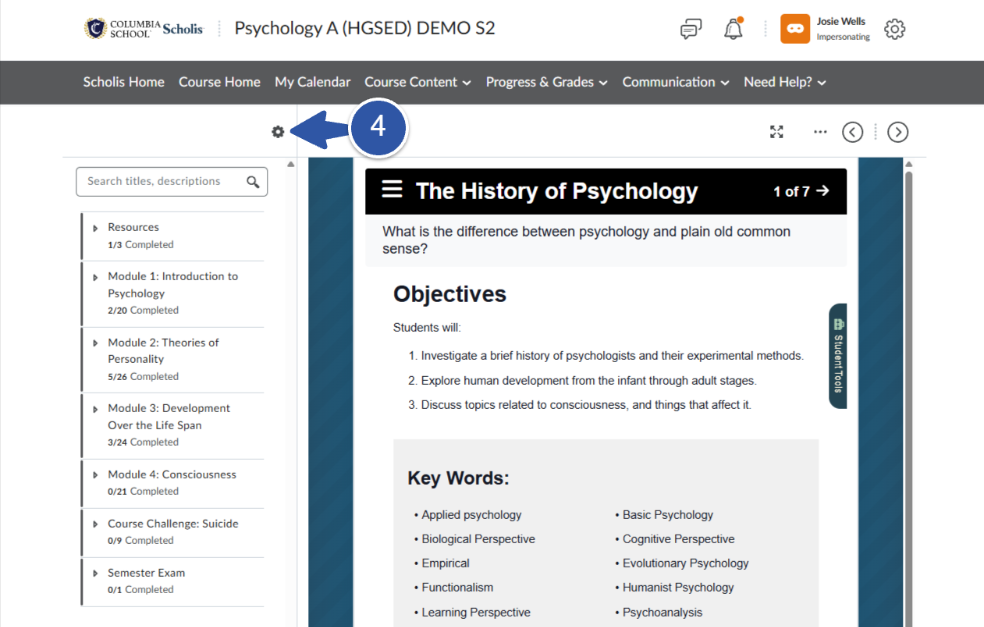
- Manage Dates – opens a page where you can review and adjust availability and due dates.
- View Reports – opens a Reports page showing statistics such as total users, users who have visited, and average time spent, plus SCORM Reports.
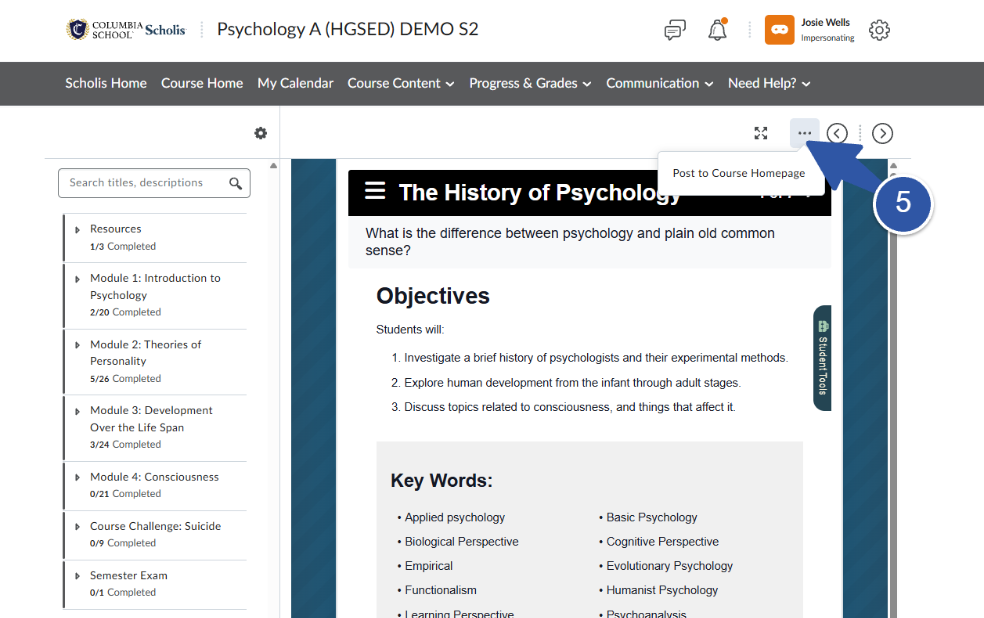
- Select the More Actions (•••) icon at the top of the viewer.
- Select Post to Course Homepage.
Note: A checkmark and a Completed label appear beneath topics you've already finished, and each module shows a running count, such as 2/20 Completed.
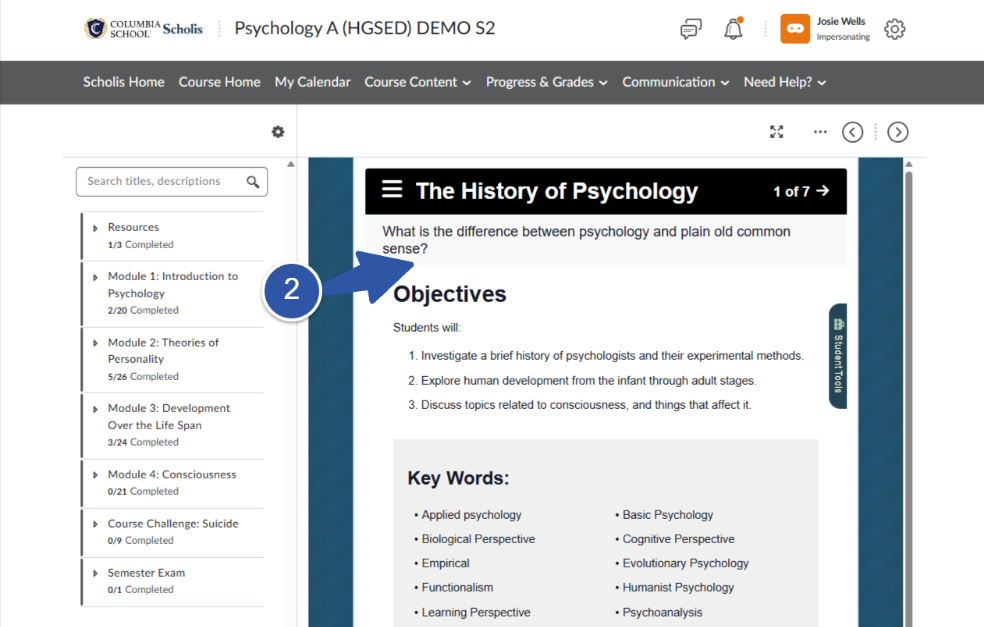
Step 2: Review the Topic Content
Once you select a topic, its content loads in the large viewer pane on the right, exactly as your students will see it. Take a moment to read through it and confirm it looks the way you expect.
Tip: Select the expand icon in the top-right corner of the viewer to open the content in a larger, distraction-free window.
Step 3: Move Between Topics in Order
Instead of returning to the table of contents each time, you can page through topics one after another in the order students will see them:
Tip: This is a quick way to preview an entire module from start to finish, the same way a student would move through it.
Step 4: Manage Dates and View Reports for a Topic
Select the gear icon above the table of contents to open a short menu with a couple of useful management options:
Important: These options open a new page, so you'll need to navigate back to Content afterward to keep reviewing topics.
Step 5: Share a Topic to the Course Homepage
When you'd like students to notice a piece of content right away, you can post it straight to the course homepage:
Note: This works well for timely or important content you want students to see as soon as they log in.