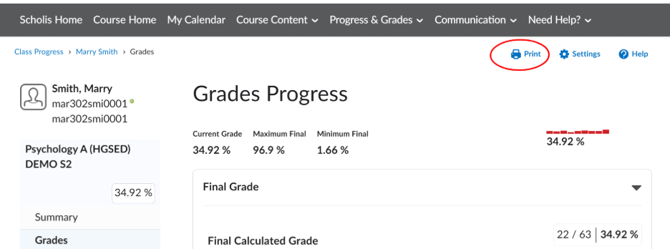
How to View Student Progress as a Classroom Monitor.mp4
1. Log in to Scholis with your classroom monitor account. You will land on the Scholis Home page, which lists your sections under "My Courses." 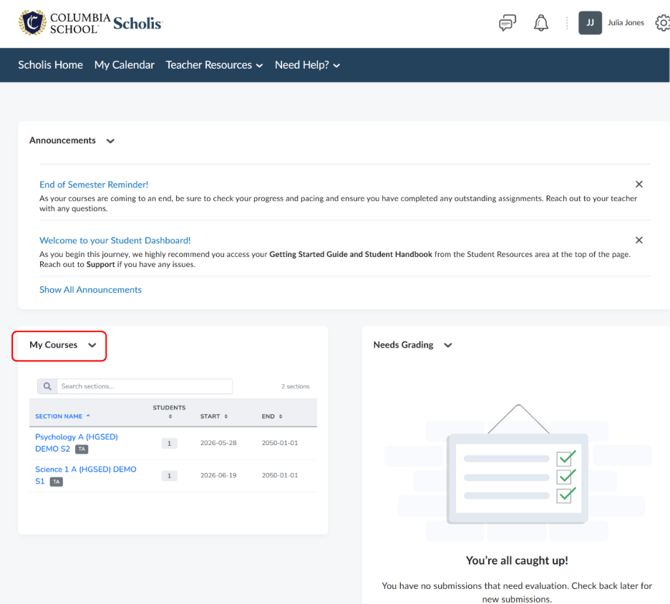
2. Click the name of the course section you want to review (e.g., "Psychology A (HGSED) DEMO S2") to open that course.
3. In the course's top navigation, open the "Progress & Grades" dropdown and select "Class Progress." 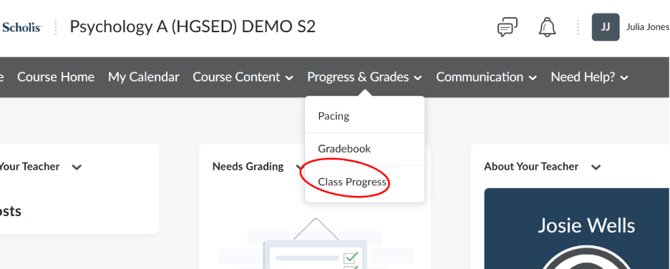
4. The Class Progress page lists every student in the section with columns for System Access, Content Completed, Grades, and Quizzing. Use the "Search users" box or the "Filter by Groups" option to narrow the list if needed. 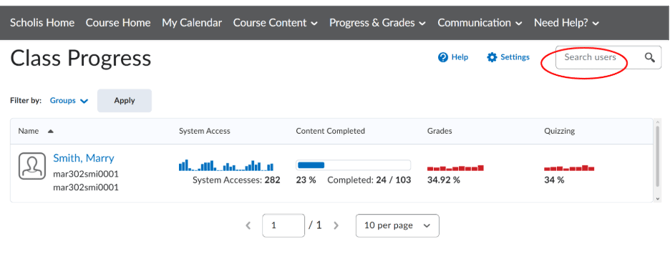
5. Click a student's name to open their individual "Progress Summary" page. 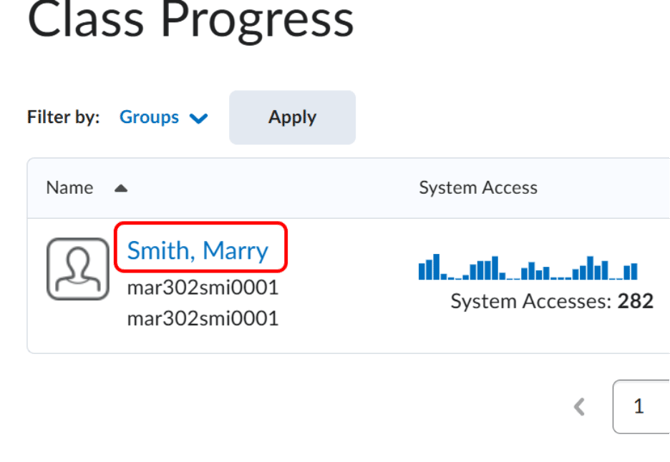
6. On the Progress Summary page, review the Grades section (Current Grade, Maximum Final, Minimum Final, and Grades Received), the Content section (Topics Visited, Total Visits, Time Spent, and percent completed), and the Quizzes section (Quizzes Completed and Attempts Awaiting Grade). 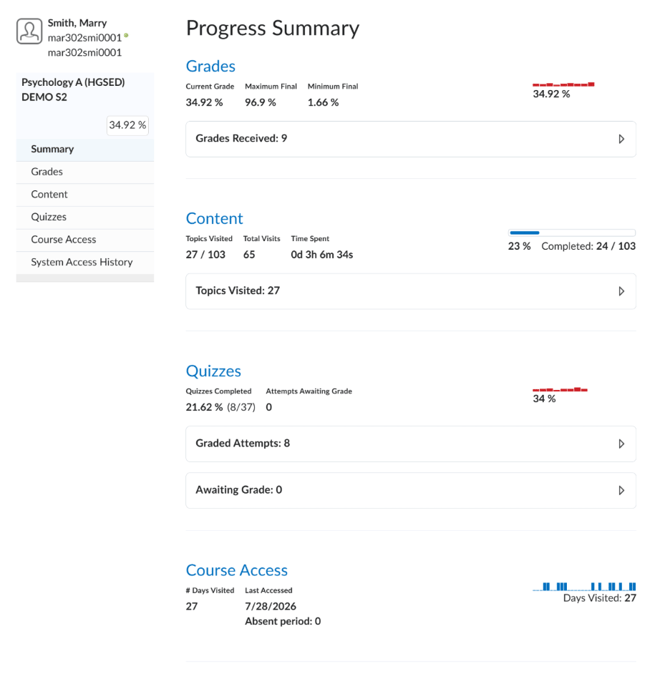
7. Use the left-hand sidebar (Summary, Grades, Content, Quizzes, Course Access, System Access History) to drill into more detail for that student. 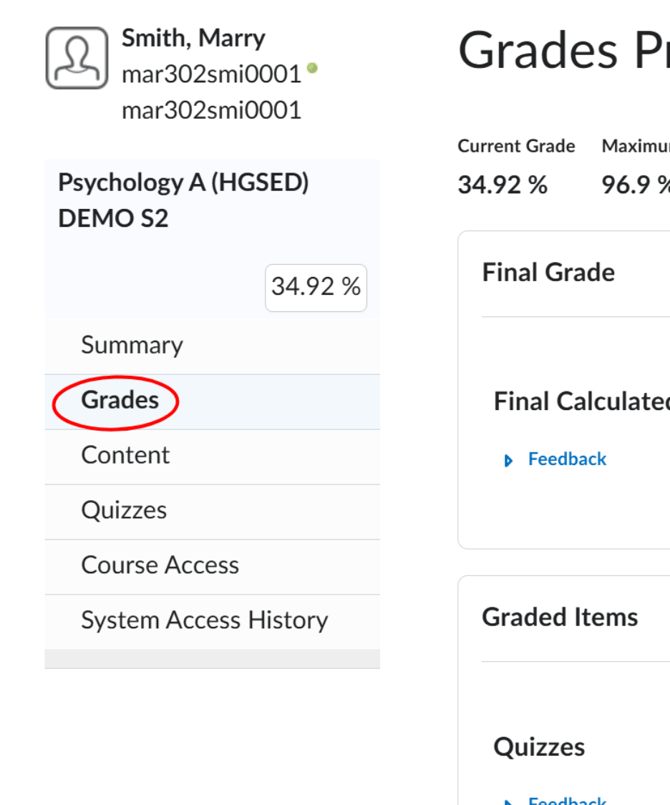
8. Use the "Print" button at the top of the page if you need a printable copy of a student's progress summary.