Viewing Your Academic Summary
- Log in to Scholis. You'll land on your school's home page.
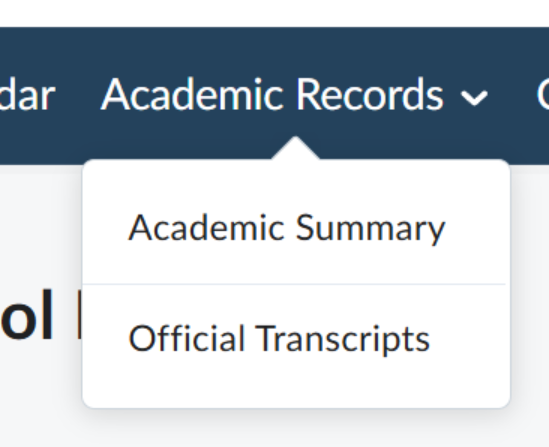
- From the dark blue navigation bar at the top of the page, click Academic Records.

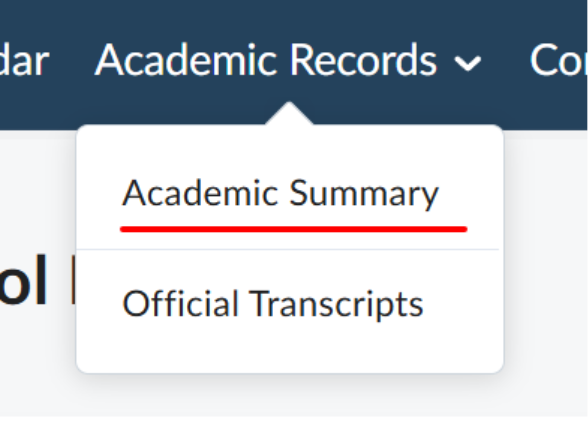
- A dropdown menu will appear with two options: Academic Summary and Official Transcripts.
- Click Academic Summary.
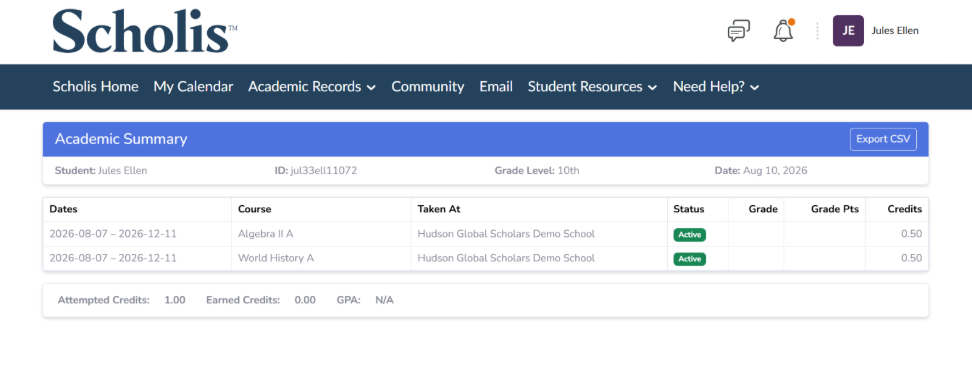
- Your unofficial transcript will load, showing your name, student ID, grade level, and the date the summary was generated at the top.
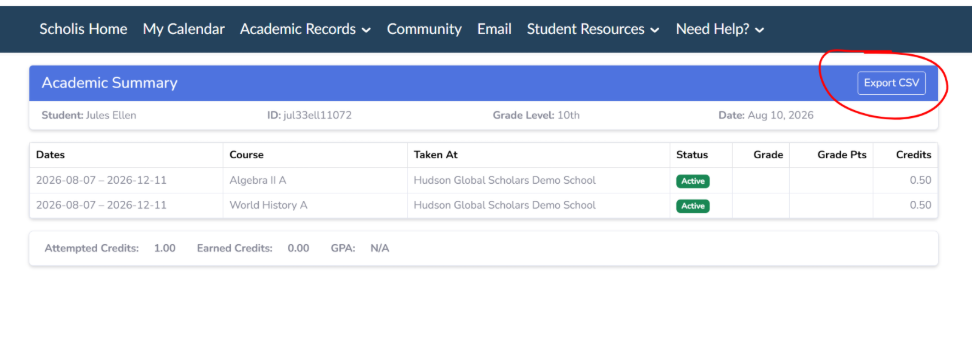
From the Academic Summary page, locate the Export CSV button in the top-right corner of the blue header bar.
- Click Export CSV.
- A CSV file containing your full academic record will download to your device.
- Open the file with a spreadsheet program to view, sort, or share the data.