How to Use the Teacher Review Data Area.mp4
1. Log in to Scholis with your classroom monitor account and go to the Scholis Home page. 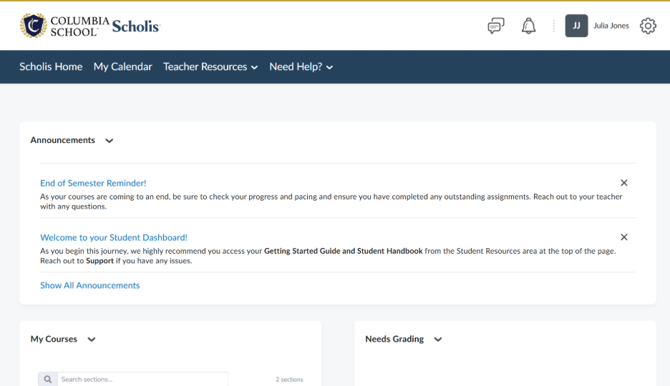
2. Scroll down to the "Teacher Data Review" widget near the bottom of the page. 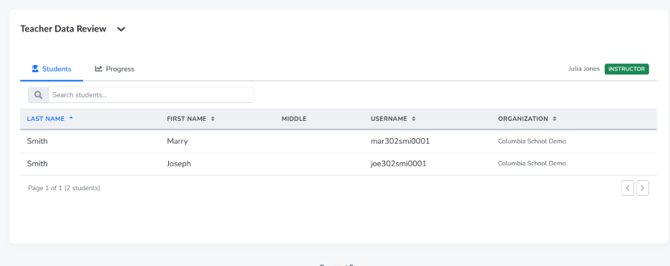
3. Click the "Students" tab to see a list of the students you have access to, with columns for Last Name, First Name, Middle, Username, and Organization. Use the "Search students..." box to find a specific student. 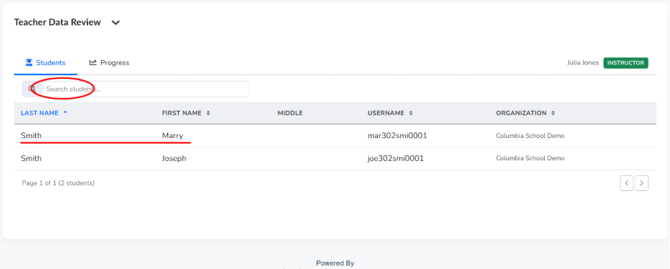
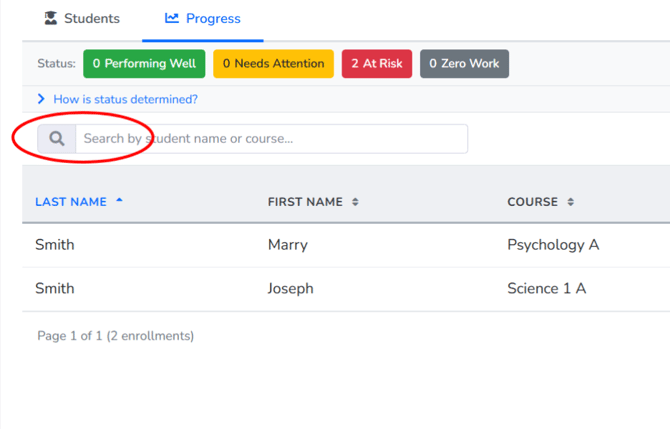
4. Click the "Progress" tab to see each student's academic status for each of their courses. 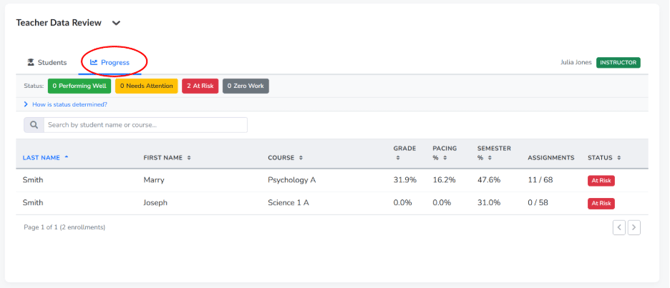
5. Use the Status filter buttons at the top (Performing Well, Needs Attention, At Risk, Zero Work) to filter the list to students in a particular status. Click "Clear filters" to remove the filter and see everyone again. 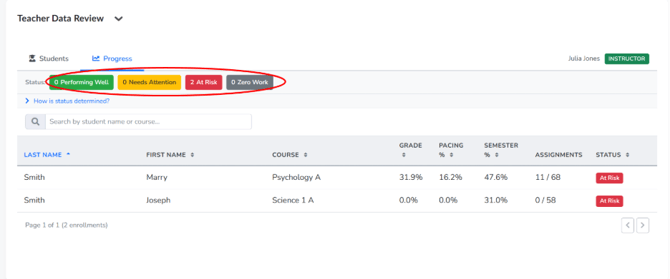
6. Click "How is status determined?" to expand a table explaining the criteria: status is based on a student's Grade % and Pacing % combined with how far along the course is (Early 0-20%, Mid 21-70%, or End 71-100% of the semester). 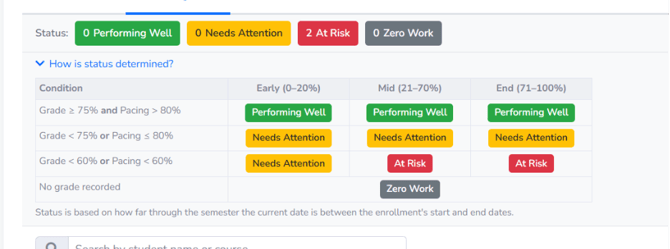
7. Review the table columns for each student: Course, Grade %, Pacing %, Semester % (how far through the semester the enrollment is), Assignments (completed out of total), and Status. 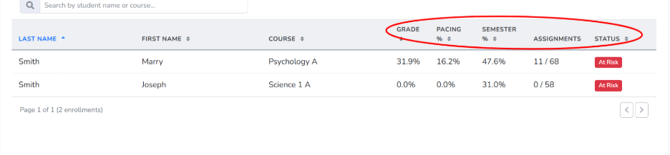
8. Use the "Search by student name or course..." box on the Progress tab to quickly find a specific student or course.