How to use the calendar
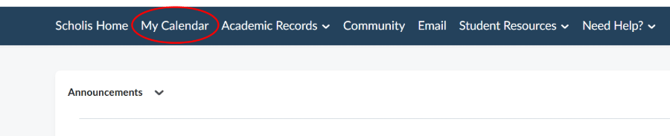
- From any page, click "My Calendar" in the top navigation bar (the dark blue menu at the top of the screen).
- The Calendar page will open. By default, it shows the Month view for the current month.
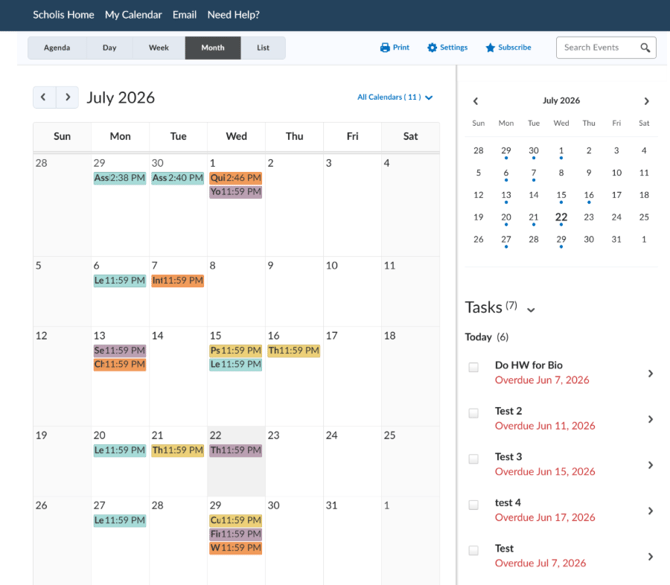
- At the top of the calendar, you will see view options: Agenda, Day, Week, Month, and List. Click any of these to switch how the calendar is displayed. "Month" view gives you a full overview; "List" view shows all events in a list format.
- Due dates for your assignments, quizzes, and discussions will appear as colored blocks on the calendar.
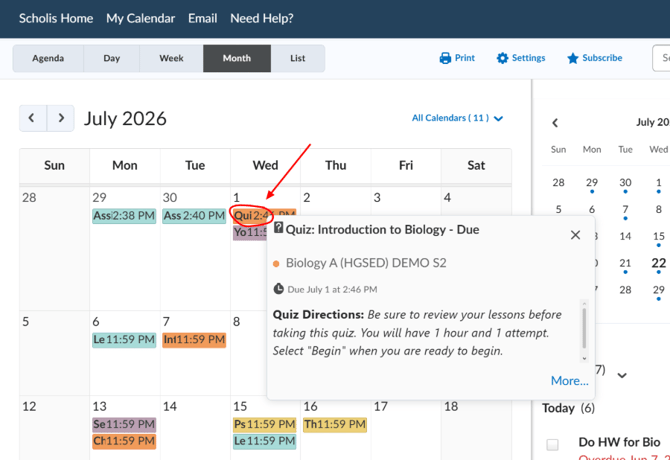
- Click on any calendar item to see its details, including the full name, due date/time, and the course it belongs to.
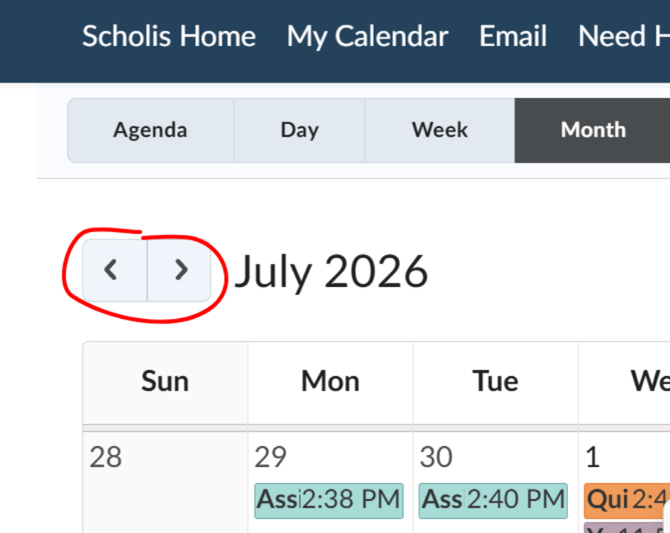
- To navigate to previous or future weeks/months, click the left arrow (<) to go back and the right arrow (>) to go forward.
- On the right side of the calendar, you will see a mini monthly calendar and a "Tasks" section.
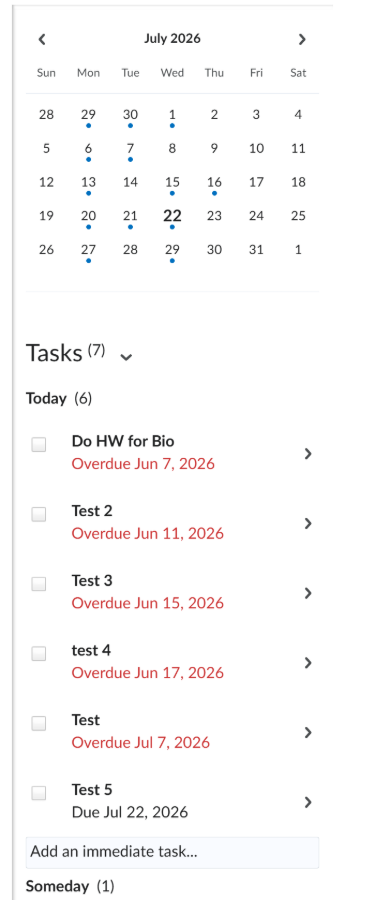
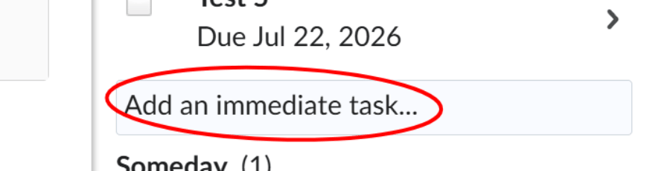
- In the "Tasks" section, you can add personal reminders. Click "Add an immediate task..." to create a personal to-do item. Type your task name, set a due date if needed, and press Enter.
- To mark a task as complete, click the checkbox next to the task name.
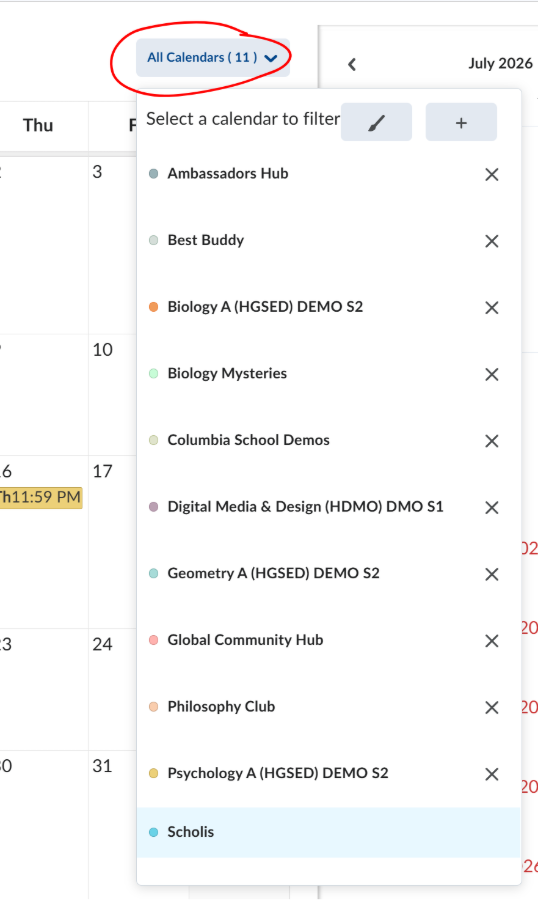
- To filter the calendar to show only one course's events, click the "All Calendars" dropdown at the top of the calendar and uncheck the courses you do not want to see.
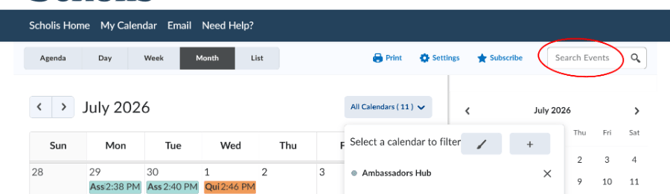
- To search for a specific event, use the "Search Events" bar in the top-right of the calendar.
- To return to the dashboard, click "My Home" in the top navigation bar.
NOTE: The calendar automatically pulls in all due dates from all your courses — you do not need to add them manually.
NOTE: Personal tasks you add in the calendar are only visible to you; your teacher cannot see them.
NOTE: Color coding on the calendar varies by course, so check which color belongs to which course.