How to take a quiz in scholis
- From the Student Dashboard or Course Home, find your quiz in the "To Do List." Quizzes are marked with a quiz icon (a page with a question mark icon).
- Click the quiz name to open it.
- Read the quiz instructions carefully. Note the following before starting: time limit (e.g., "1 hour"), number of attempts allowed (e.g., "1 attempt"), and any materials you are permitted to use
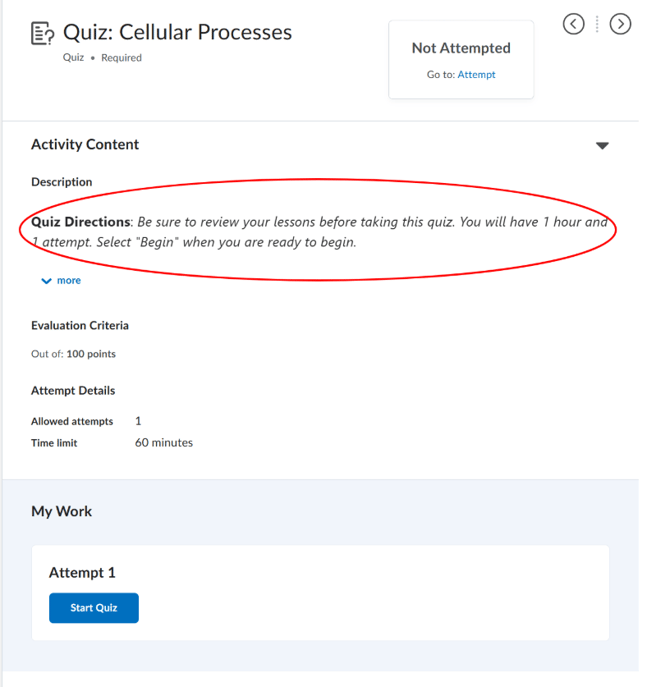
- Review your lessons before beginning, as instructed. Once you start a timed quiz, the timer will not stop.
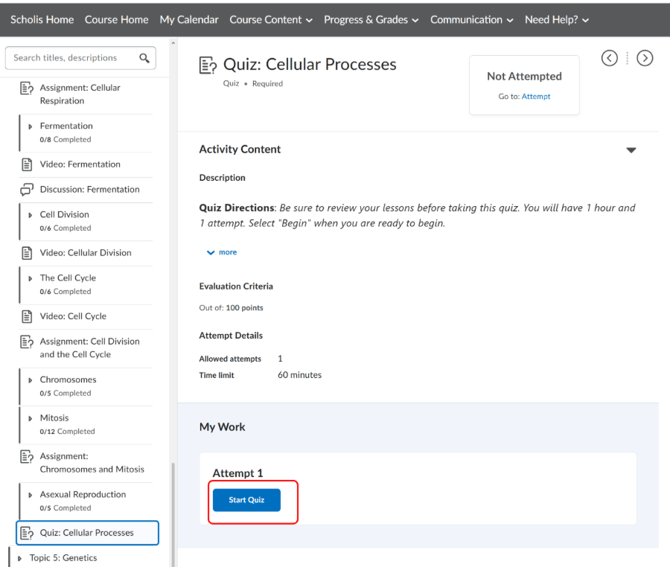
- When you are ready to begin, click the "Start Quiz" button.
- The quiz will open and the timer (if applicable) will start counting down. You will see the time remaining displayed on screen.
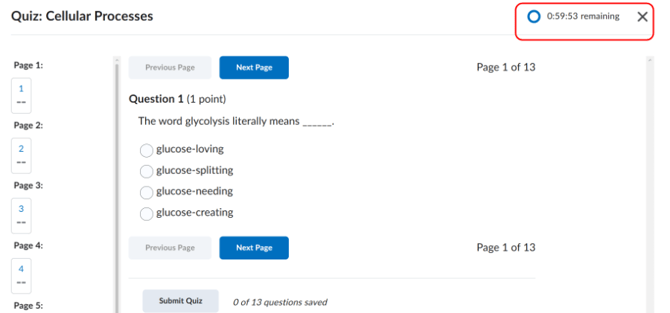
- Read each question carefully and select or type your answer.
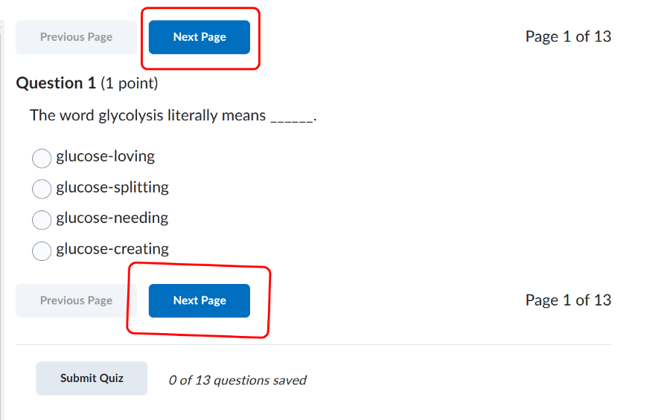
- To move to the next question, click the "Next Page" or ">" button. To go back to a previous question, click "Previous Page" or "<".
- If you are unsure of an answer, you may be able to flag or skip it and return to it before submitting.
- When you have answered all questions, click "submit quiz."
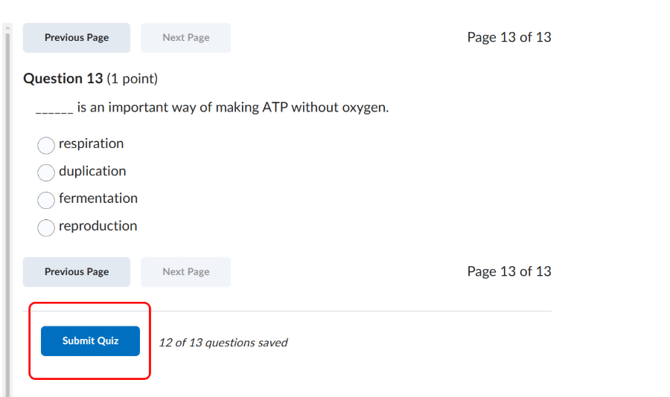
- A summary page will appear showing which questions you answered. Review your answers if time permits.
- Click "Submit All and Finish" to submit your quiz for grading.
- A confirmation message will appear. Your score may be shown immediately (for auto-graded quizzes) or after your teacher reviews it.
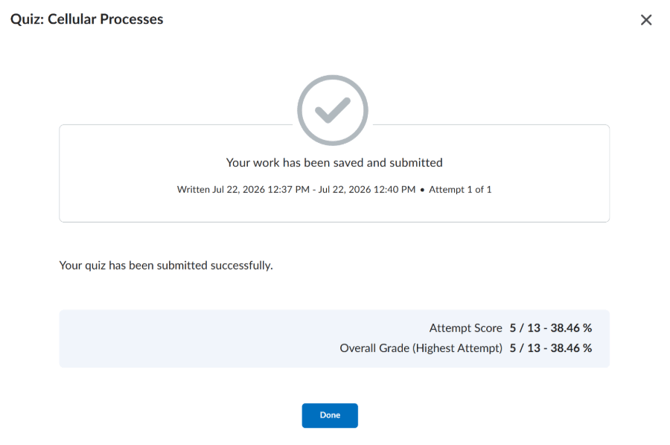
- To view your quiz score later, go to Progress & Grades > Gradebook in the top navigation bar.
NOTE: IMPORTANT: Do NOT close the browser window or navigate away during a timed quiz, as this may cause you to lose your work.
NOTE: Most quizzes allow only 1 attempt. Make sure you are prepared before clicking "Begin."
NOTE: If you experience a technical issue during a quiz (e.g., browser crash), contact your teacher immediately and explain what happened.
NOTE: Some quizzes may display all questions on one page; others show one question at a time. Both work the same way.
NOTE: You will be able to see your quiz score in the Gradebook after it has been graded.