How to submit an assignment in scholis
- From the Student Dashboard or Course Home, locate your assignment. You can find it in the "To Do List" (on the dashboard or course home).
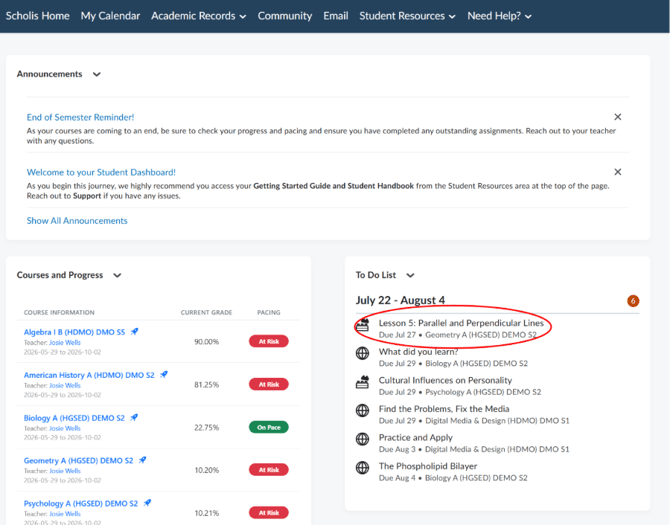
- Click on the assignment name to open it.
- Read the assignment instructions carefully at the top of the page. Pay attention to: the due date (shown near the top), the number of allowed attempts, and the submission directions.
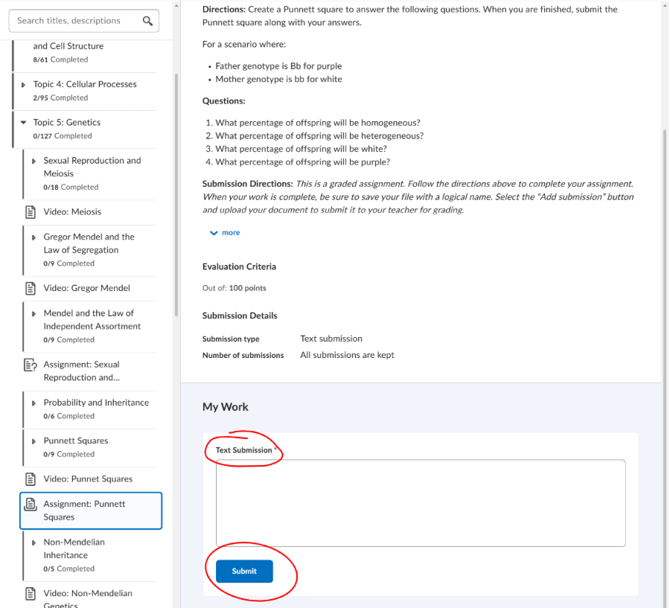
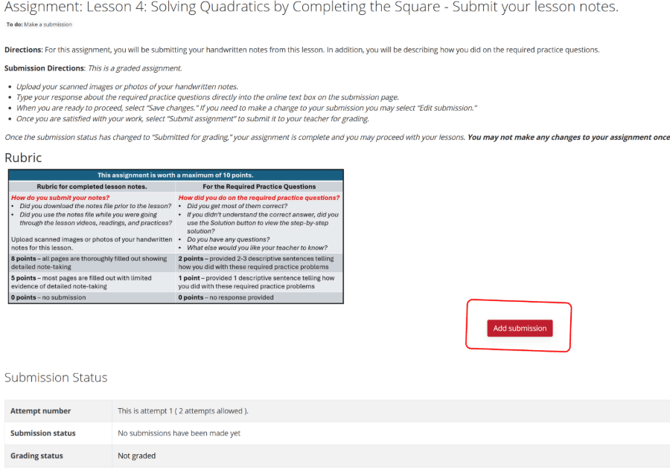
- There are two common assignment types: (a) Text-based — type your response directly into the text box on screen; (b) File Upload — upload a scanned image, photo of your handwritten notes or a file.
- For text-based assignments: Click inside the text box and begin typing your response. Use the toolbar above the text box for formatting (bold, italics, bullet points, etc.).
- For file upload assignments: Click the "add submission" button or drag and drop your file into the designated upload area. Wait for the file to finish uploading before proceeding.
- When you are ready to proceed, click "Save Changes" or "Save Draft" to save your work without submitting.
- Once you are satisfied with your response, click "Submit Assignment" (for file uploads) or "Finish Attempt" and then "Submit All and Finish" (for quiz-style assignments).
- A confirmation message will appear stating that your assignment has been submitted. Your submission status will change to "Submitted for Grading."
- You can return to view your submission, but you typically cannot make changes after submission unless your teacher has enabled this option.
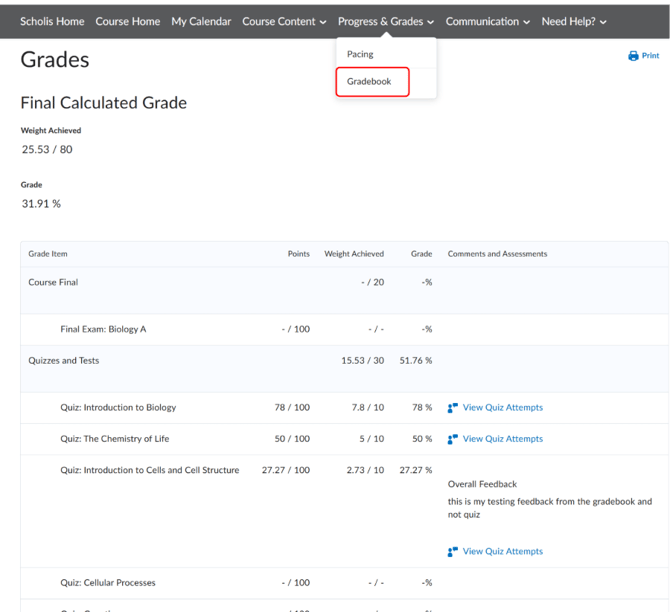
- To check the status of a submitted assignment, go to Progress & Grades > Gradebook in the top navigation bar while inside your course.
NOTE: Once submitted, most assignments CANNOT be edited. Review your work carefully before clicking "Submit."
NOTE: If you submitted by mistake or need to make a correction, contact your teacher immediately.
NOTE: Most assignments allow 2 attempts — if you have a second attempt available, you can resubmit after your first submission.
NOTE: File upload tip: Accepted file types are usually JPG, PNG, or PDF. Make sure your image is clear and readable before uploading.