How to participate in a discussion
- From the Student Dashboard or Course Home, find your discussion in the "To Do List." Discussions are marked with a speech bubble icon.
- Click the discussion title to open it.
- Read the full discussion topic and instructions at the top of the page. To open the discussion, click on ‘Open Discussion’. Note: the due date, how many posts you need to make (e.g., "at least 1 post and respond to 3 classmates"), and any specific guidelines.
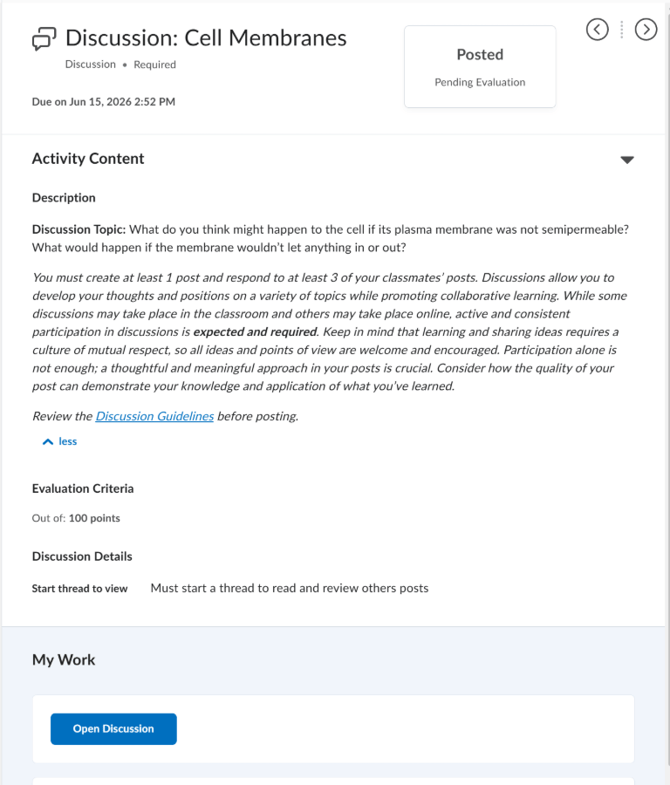
- To write your first (initial) post, click the "Start a New Thread" button.
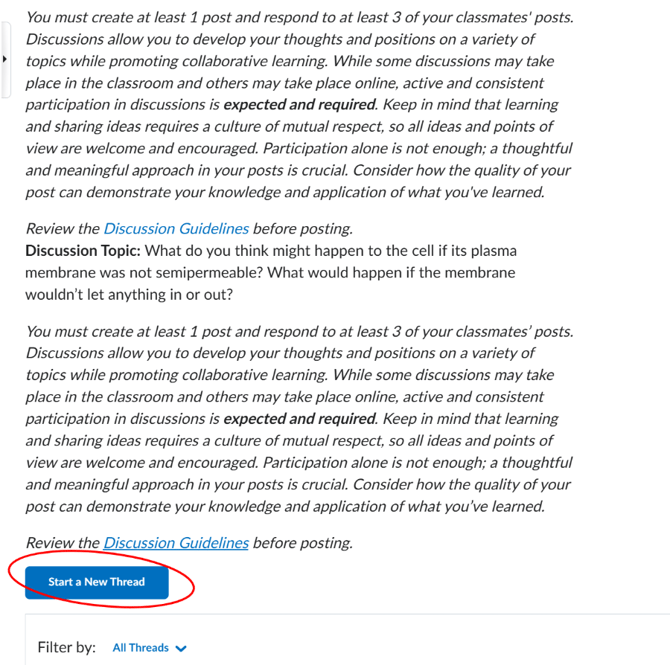
- A form will appear with two fields: "Subject" and "Post."
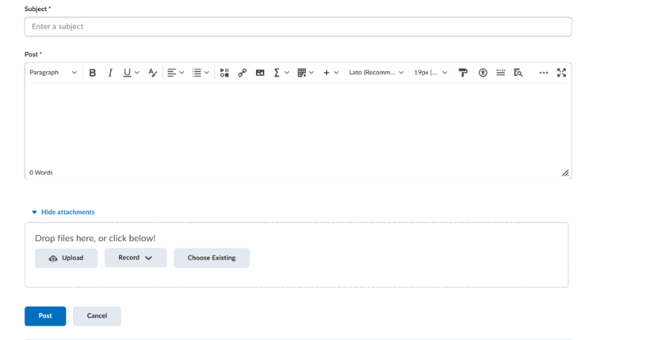
- In the "Subject" field, type a brief title for your post (e.g., "My Response to the Cell Membrane Question").
- Click inside the "Post" field (the large text area) and type your response. Use the formatting toolbar if needed (bold, italic, bullets, etc.).
- If you want to attach a file or image to your post, click "Upload" in the attachments area below the text box and select your file.
- When you are satisfied with your post, click the "Post" button at the bottom of the form.
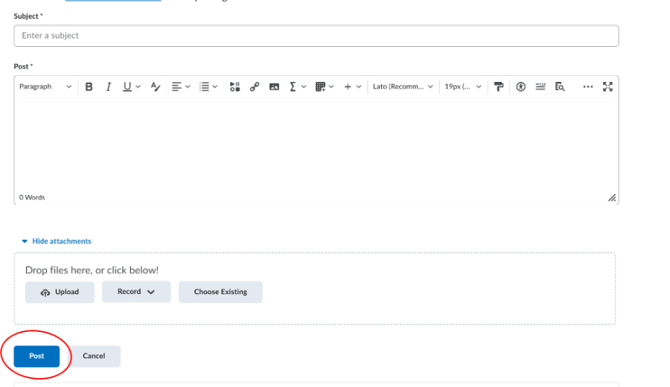
- Your post will now appear in the discussion thread below.
- To respond to a classmate's post, scroll down to their post and click the "Reply" button beneath it.
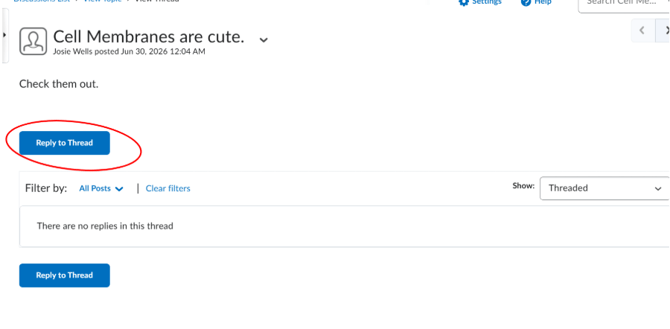
- Type your reply in the text box that appears and click "Post" to submit your reply.
- Repeat step 12-13 until you have replied to the required number of classmates.
- The discussion will show all posts from you and your classmates. Note: you may need to post your initial response before you can see your classmates' posts (indicated by "Must post first" message).
NOTE: You must usually post your OWN response first before you can see your classmates' posts.
NOTE: Discussions are graded — a thoughtful, well-developed response is important. Participation alone is not enough; quality matters.
NOTE: Be respectful of all ideas and perspectives in the discussion.
NOTE: Late posts may still be accepted but could result in grade penalties. Check your specific course policy.
NOTE: You can edit or delete your post shortly after submitting it by clicking the dropdown arrow (v) next to your post title.