How to Navigate the student dashboad video
- Open your web browser (e.g., Google Chrome, Firefox, or Safari) and go to your Scholis LMS login page.
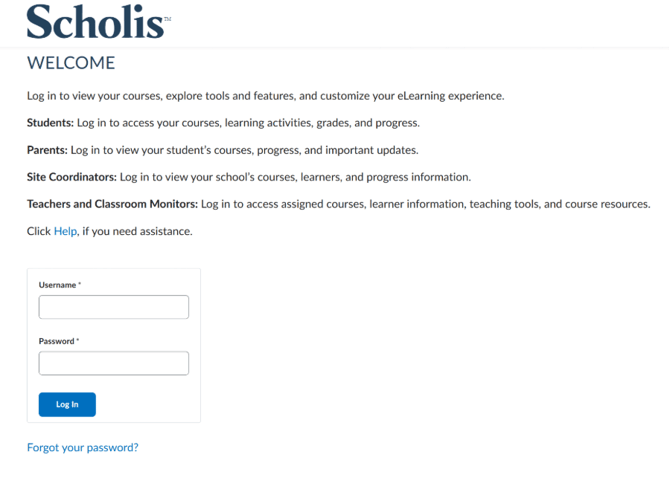
- Enter your username and password, then click the "Sign In" or "Log In" button.
- After logging in, you will land on the Student Dashboard — this is your home base. The page title will show your school's name at the top.
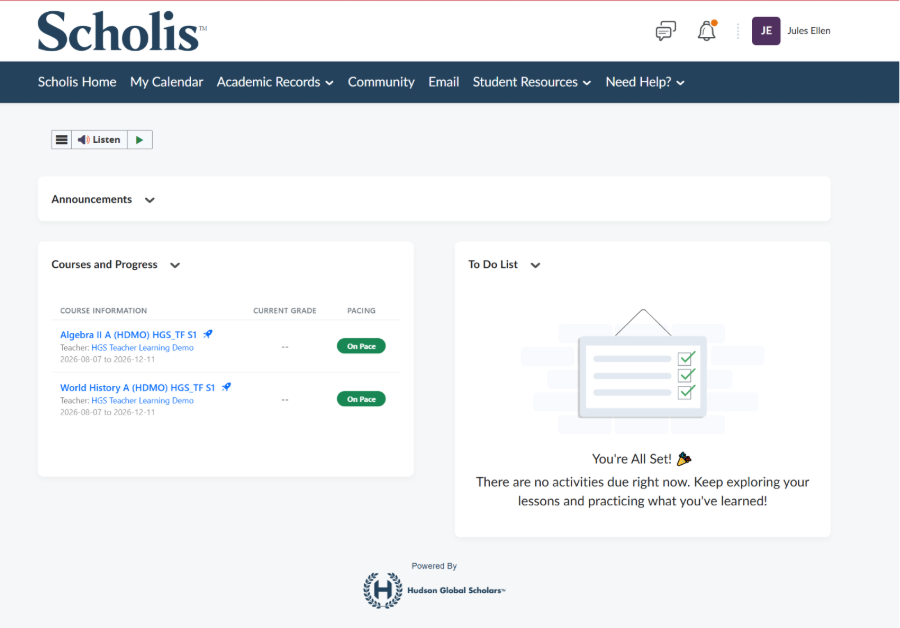
- At the very top of every page, you will see the Navigation Bar (dark blue bar). This contains the main menu items: My Home, My Calendar, Academic Records, Community, Email, Student Resources, and Need Help?

- In the top-right corner, you will see icons for: subscription alerts (chat bubble icon), Notifications (bell icon), and your Profile initials/avatar.
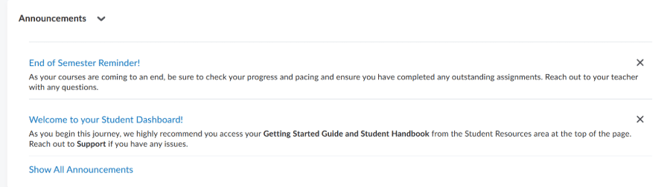
- On the main dashboard, look for the "Announcements" section — this displays important messages from your school or teachers. Click any announcement title to read the full message.
- Below Announcements, you will see "Courses and Progress" — this lists all the courses you are enrolled in. Each course shows your current grade status (e.g., "On Pace" or "No Activity") and your teacher's name.
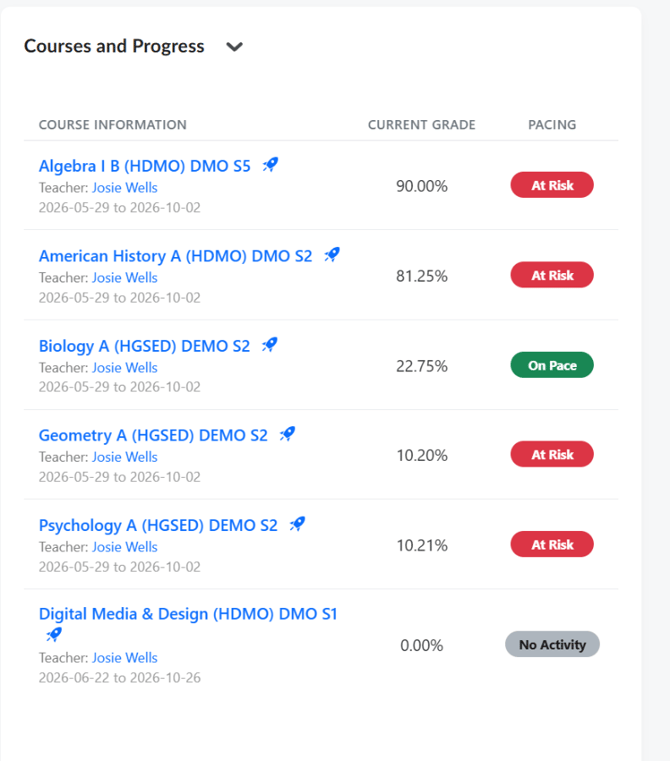
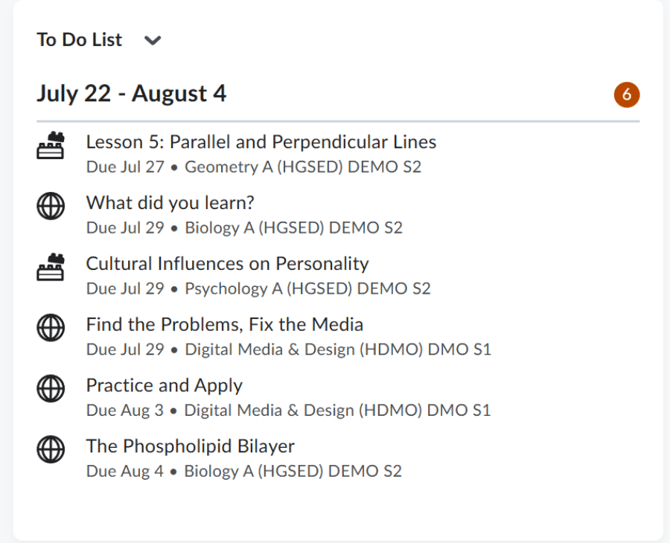
- On the right side of the dashboard, look for the "To Do List" — this shows upcoming assignments, quizzes, and discussions organized by due date. Click any item to go directly to that activity.
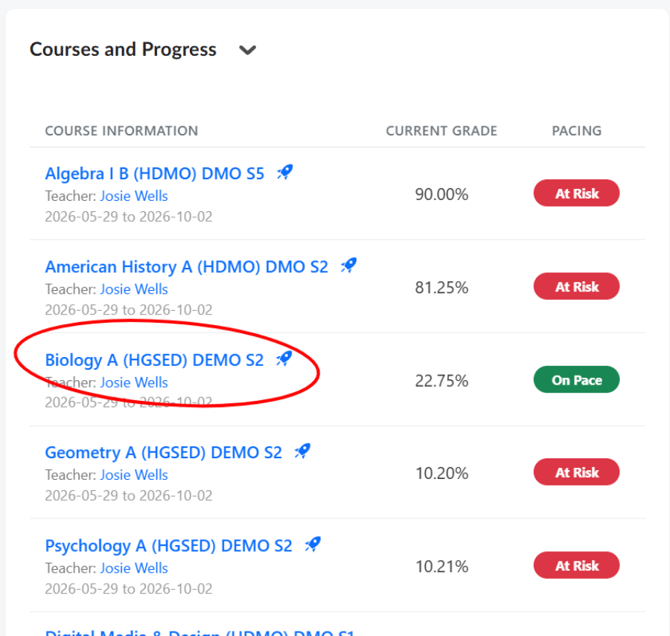
- To navigate to a specific course, click the course name in the "Courses and Progress" list.
- To return to the dashboard at any time, click "Scholis Home" in the top navigation bar.

NOTE: Bookmark the login page in your browser for easy access.
NOTE: If you forget your password, click "Forgot Password" on the login page or contact your school's support team.
NOTE: The To Do List only shows upcoming items — check it regularly to stay on top of deadlines.
NOTE: Screenshot reference: The top navigation bar is the dark bar at the top; the Courses and Progress section is in the lower-left portion of the dashboard; the To Do List is in the lower-right.