Getting Started
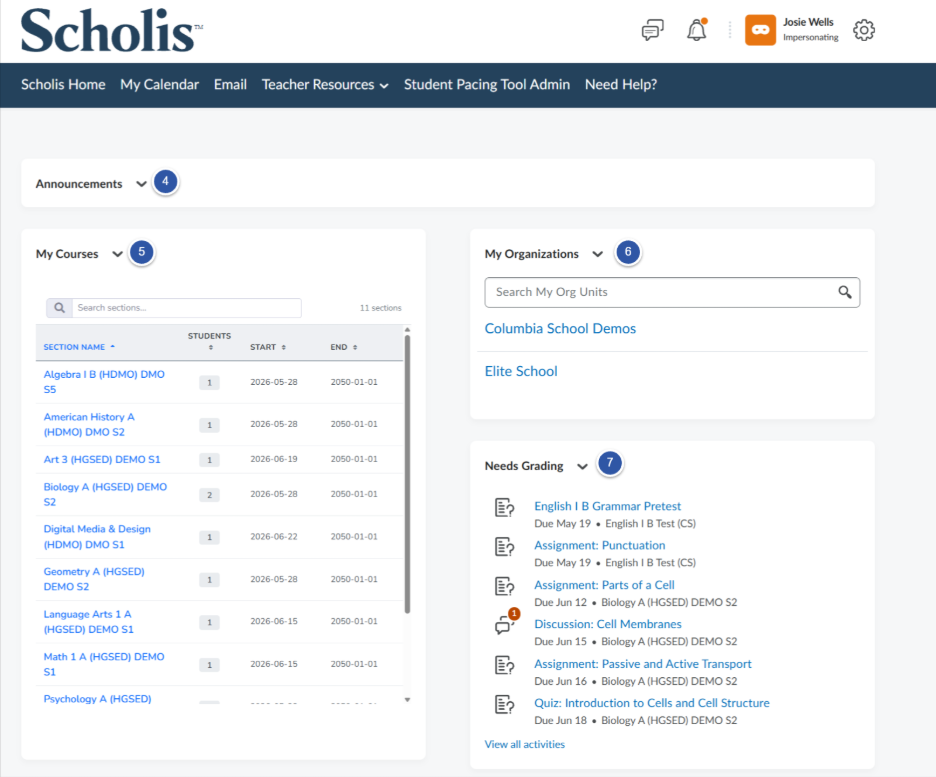
This guide walks you through the main features of your Scholis homepage. There is a mainpage that has all of you’re the courses you are assigned, a list of assignments that need grading, a list of the organizations (or schools) you are working under as a teacher, and access to each course which has its own homepage and details. This guide will walk you through each section of Scholis.
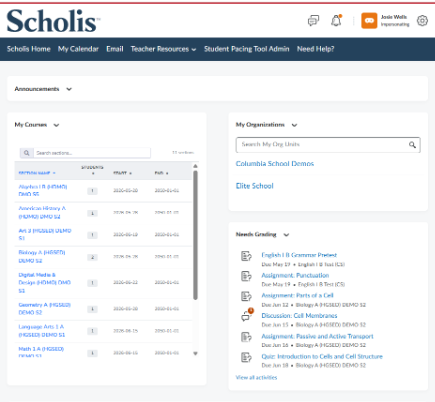
At the very top of the page, you’ll find the Scholis logo (click it anytime to return to this homepage), along with icons for messages, notifications, and your profile. The gear icon opens your account settings.

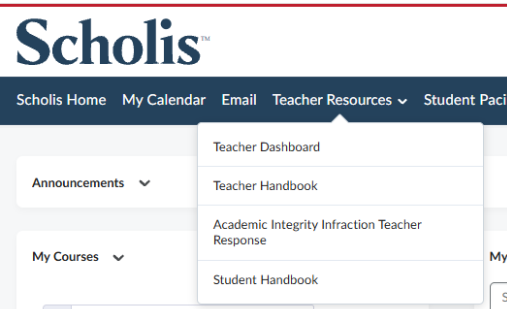
Below the banner is the navigation bar with links to Scholis Home, My Calendar, Email, Teacher Resources, Student Pacing Tool Admin, and Need Help.

Click this menu to access four reference links: Teacher Dashboard, Teacher Handbook, Academic Integrity Infraction Teacher Response, and Student Handbook.
This panel displays course or school-wide announcements. Click “Show All Announcements” to view the complete list.
Step 5: My Courses Widget
Lists every section you teach, along with student counts and start/end dates. Use the search box to find a section, or click a section name to open it.
Step 6: My Organizations WidgetShows the schools or districts you belong to. Click an organization name to view its details, or use the search box to find a specific org unit.
Step 7: Needs Grading WidgetLists ungraded assignments, quizzes, and discussions across your courses, each showing its due date and course name. Click an item to grade it directly, or click “View all activities” for the full list.
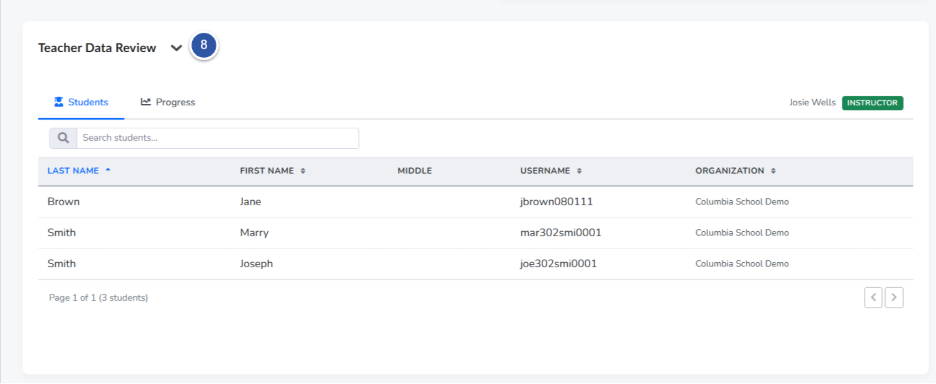
Found at the bottom of the page, this widget has two tabs.
- The Students tab shows your full roster with last name, first name, username, and organization. Click on a students name to see the details.
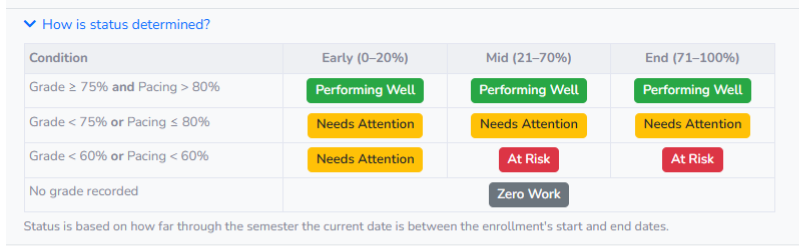
- The Progress tab displays each student’s grade, pacing percentage, semester percentage, assignments completed, and a color-coded status: Performing Well, Needs Attention, At Risk, or Zero Work.
- Click “How is status determined?” to see the exact grade and pacing thresholds used for each status label.