How to Navigate the Parent Dashboard.mp4
1. Log in to the Scholis Parent Dashboard at lms.scholis.com. You will land on the Home page. 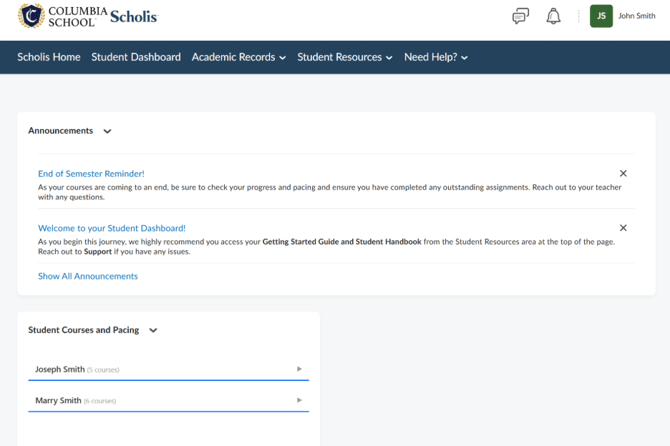
2. On the Home page, check the "Announcements" widget for school-wide updates, and the "Student Courses and Pacing" widget to see each child's enrolled courses and current grades (click a child's name to expand their course list). 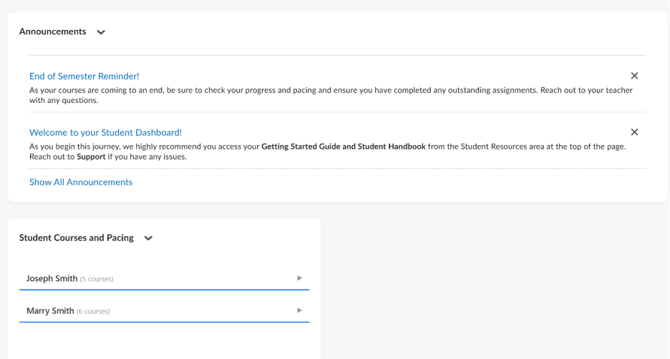
3. Use the "Academic Records" dropdown in the top navigation to access "Academic Summary" (a table of courses, dates, status, grades, grade points, credits, and GPA) or "Official Transcripts" (opens Parchment, a third-party transcript ordering service, in a new tab). 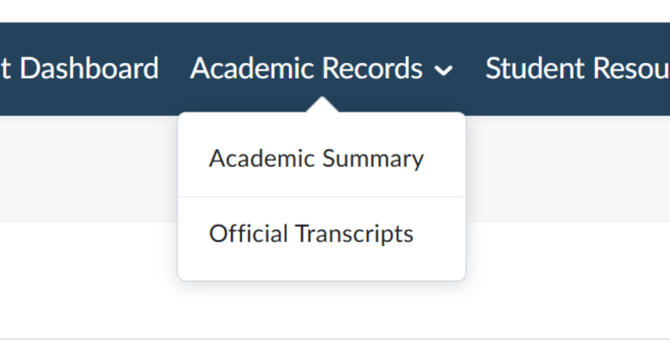
4. Use the "Student Resources" dropdown for links such as Getting Started, HGS Community, Agreements, Student Handbook, and University Advising. 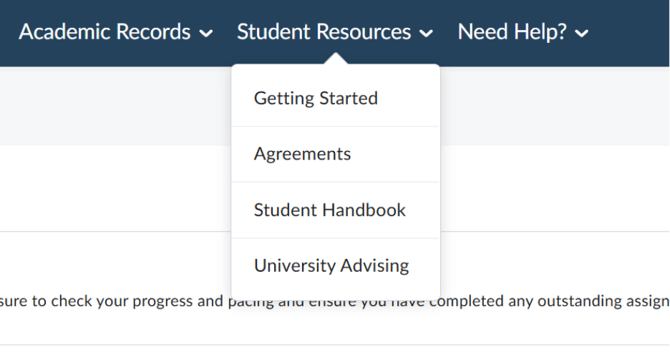
5. Click "Student Dashboard" in the top navigation to open the dedicated parent app. Here you will see a card for each of your children with counts for Overdue Work, Upcoming Work, and Recent Grades. 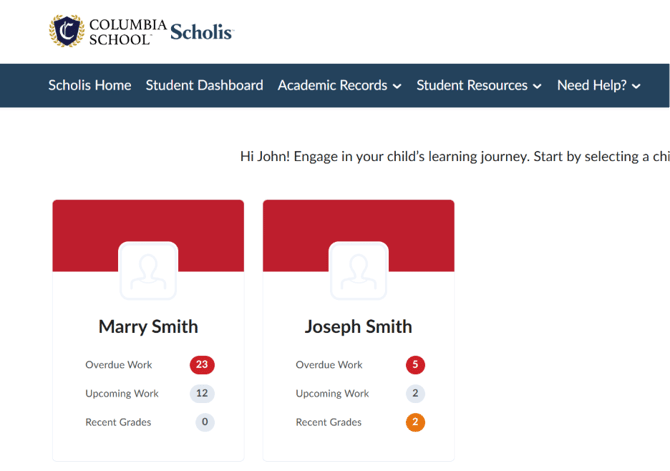
6. Click on a child's card to see their "Work To Do" list (Overdue and Upcoming items), "Recent Grades" panel, "Portfolio Items" panel, and "Latest Posts" from teachers. Use "View all work" or "View all grades" for the full lists with filtering options. 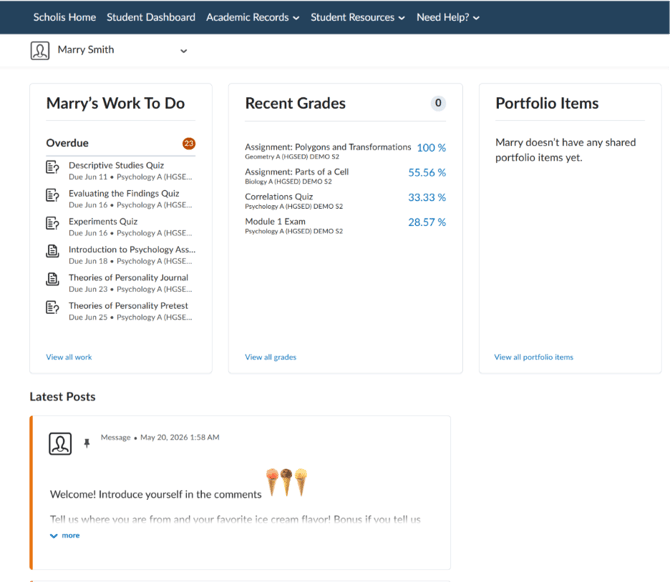
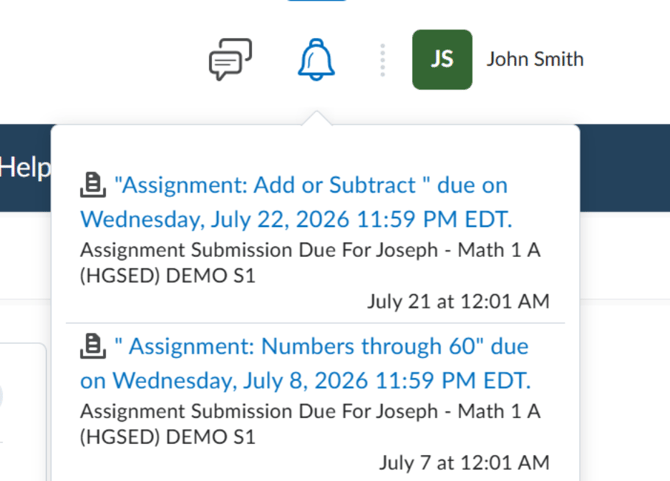
7. Click the bell icon in the top navigation at any time to see a running list of upcoming and overdue due-date reminders.