Finding and Joining Live Class Sessions in Scholis
- Log in to the student portal. Go to your Scholis login page and sign in with your student credentials. You will land on your home dashboard.
- Open your course from Courses and Progress. On the home dashboard, locate the “Courses and Progress” panel and click the name of the course that has the live session (see Figure 1).
- Open Course Content and select Live Sessions. On the course home page, click “Course Content” in the top navigation bar, then select “Live Sessions” from the dropdown menu (see Figure 2).
- Join or wait for the session to begin. The Live Instructional Sessions page opens, click the live session link. If not, a status message displays and the page checks again automatically every few seconds or once your teacher begins the class.
- Access the recording if a session is missed. Recordings are typically posted within 24 hours of the live session ending. On the same Live Sessions page, click “Click here to view recorded sessions” (shown in Figure 3) to catch up.
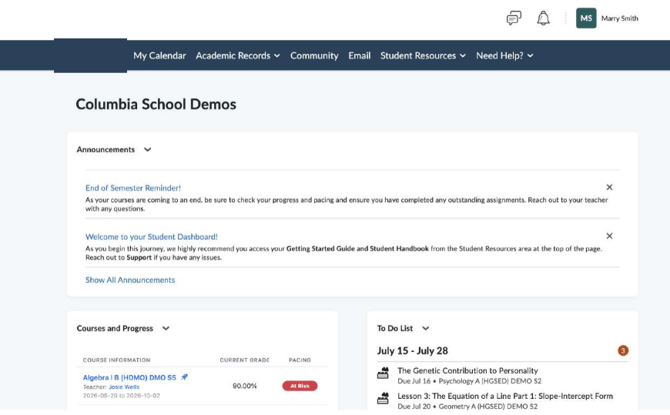
Figure 1: Home dashboard — Courses and Progress panel
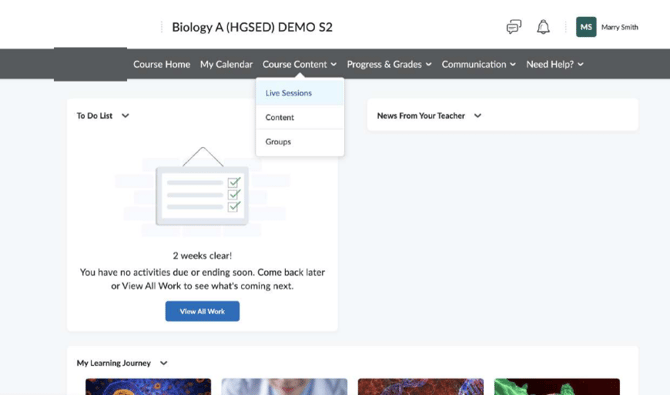
Figure 2: Course Content menu — Live Sessions option
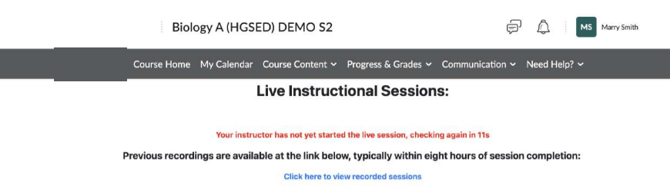
Figure 3: Live Instructional Sessions page
If the “Live Sessions” option does not appear in the Course Content menu, or the page does not load, contact Customer Support for assistance.