Getting Started
The Needs Grading tool gives you a single location to view all student submissions that are awaiting evaluation. Submissions from Assignments, Quizzes, and Discussions appear together in one list, and you can click any of them to go straight to its assessment page. This guide shows you how to use the Needs Grading list and the Needs Grading widget on your course homepage to work through student submissions efficiently.
Note: This tool is called Needs Grading at HGS. You may also see it referred to as “Quick Eval” in some Brightspace screens—this is the same tool.
How Submissions Appear in Needs Grading
Each activity type behaves a little differently in the list. Understanding this helps you know what to expect.
Assignments:
- A submission is listed when a student submits a file or text, or marks an assignment as complete.
- Assignments stay visible until you publish feedback for the submission.
- If a student resubmits, the new submission is added back to the list.
- Submissions with feedback still in draft show a draft icon.
- For assignments set to complete Automatically on due date, all submissions appear once the due date passes. Assignments set to complete Automatically on Evaluation do not appear here.
- A submission is listed when a student completes a quiz that requires manual grading.
- Once the attempt is graded and saved, it is considered evaluated and drops off the list.
- If a quiz is set up without Automatic Export to Grades, grading it here will not export to the Gradebook—you must go to the Quizzes tool and publish the attempts to the Gradebook.
- A submission is listed when an assessable discussion topic has a post or reply from a student.
- Once feedback is saved or published, the submission drops off the list.
- Submissions with feedback still in draft show a draft icon.
- Sort by first or last name, Activity Name, Course Name, or Submission date.
- Filter by Activity Name, Course Name, or Submission Date.
- Search for a specific student, assignment, quiz, discussion topic, or course.
- Submissions tab – shows every individual student submission awaiting evaluation. Best when you want to grade as work comes in.
- Activities tab – shows each assessable activity that has one or more submissions, regardless of status. Best when you want to finish all the grading for one assignment, discussion, or quiz before moving on.
Quizzes:
Discussions:
Note: You only see submissions from students in the sections you are enrolled in.
Sort, Filter, and Search
You can organize the Needs Grading list to find what you need quickly:
When you open Needs Grading from inside a specific course, the list is prefiltered to that course. To see submissions across all your courses, click the ellipsis (•••) icon and select Multi-Course Quick Eval.
Note: For assignments created with the “Hide student names during assessment” option, names and profile images are hidden and replaced with a generic image, and the name column shows “Anonymous User.”
Two Ways to View: Submissions and Activities
Needs Grading offers two tabs, so you can work the way that suits the task:
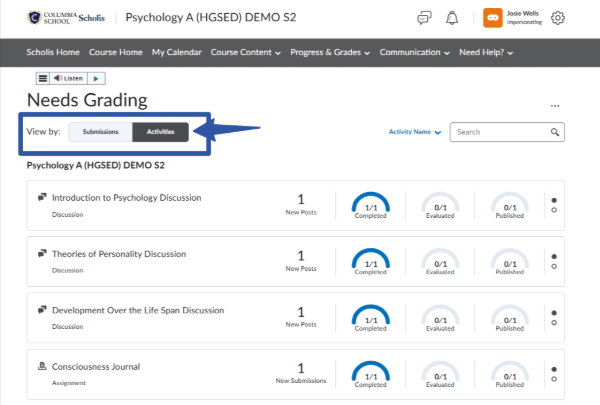
The Activities tab also displays progress indicators for student submissions, your evaluations, and feedback publishing, along with links to the evaluation page, the submission page, and a Publish All action. A count on each activity shows how many submissions have never been evaluated or have been resubmitted since the last evaluation.
Step 1: Open Needs Grading
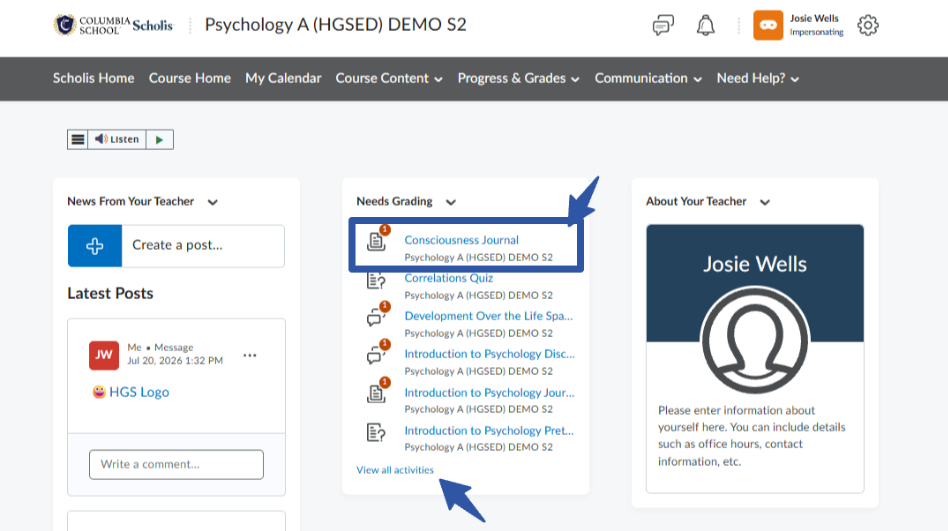
From your course homepage, select items by name or select View all Activities to open the list of submissions awaiting evaluation.
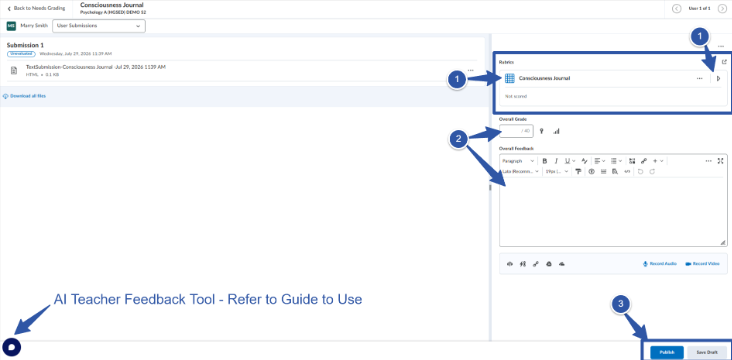
Step 2: Evaluate an Assignment
- If the assignment has a Rubric, select the arrow to open it.
- Enter an Overall Grade and Overall Feedback.
- Once completed, you may select Publish (which will send the grade and feedback to the student) or Save Draft (which will save your work – students will not see this until you publish it).
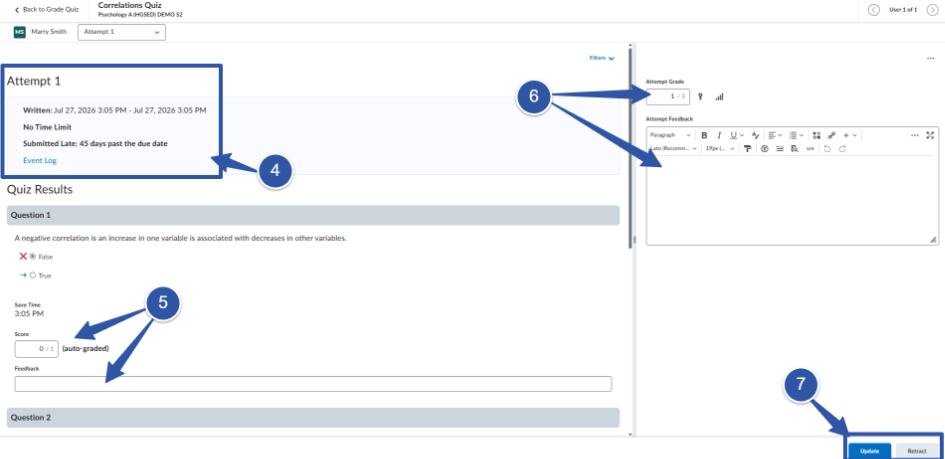
- View the details of the quiz attempt. You can select the Event Log to see more information.
- Review the auto graded scores for each question item. You may edit the score and give individual feedback on each question item as needed.
- Enter an Attempt Grade to update the quiz grade results and enter Attempt Feedback.
- Click Update (to update the quiz score) or Retract (allows you to remove a published feedback and grades).
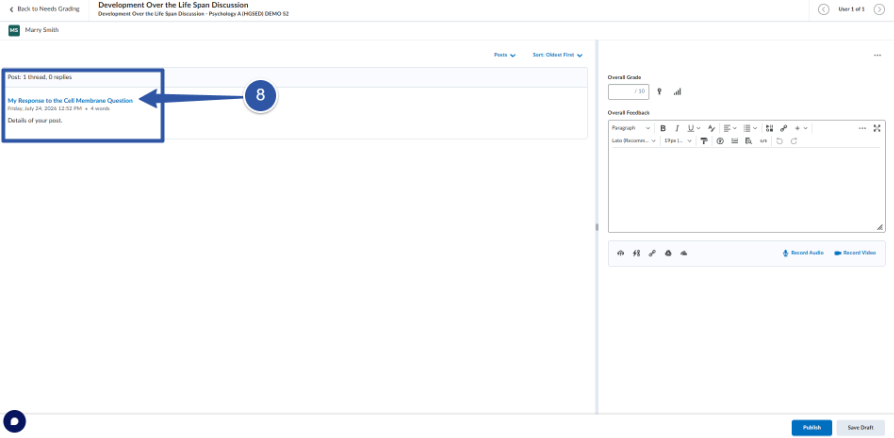
- When you select a discussion submission, you will need to select the name of the discussion. This will take you to the Discussion Evaluation screen to complete your assessment there.
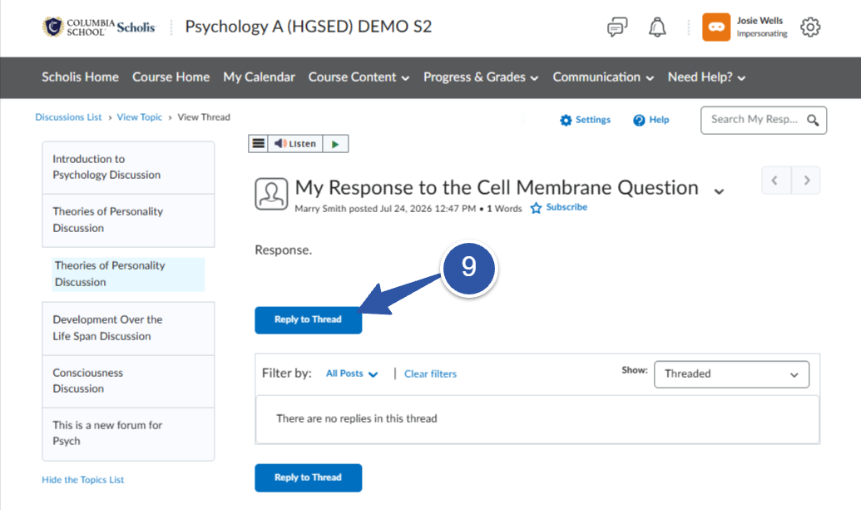
- Select Reply to Thread to respond to each student.
- Select Post to send response to the student.
Step 3: Evaluate a Quiz
Multiple choice quizzes without any written response will be graded automatically. You may choose to edit the quiz grading and add feedback. Each attempt on the quiz can receive separate feedback.
Step 4: Evaluate a Discussion