How do I contact my teacher
- Method 1 - From the main dashboard: Click "Email" in the top navigation bar (the dark blue menu at the top of the screen).
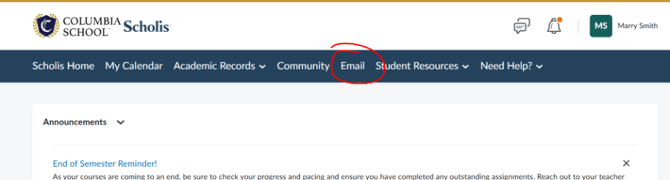
- Method 2 - From inside a course: Click "Communication" in the course's top navigation bar, then select "Email" from the dropdown.

- The Email application will open. This is an internal messaging system — messages sent here go directly to your teacher's LMS inbox.
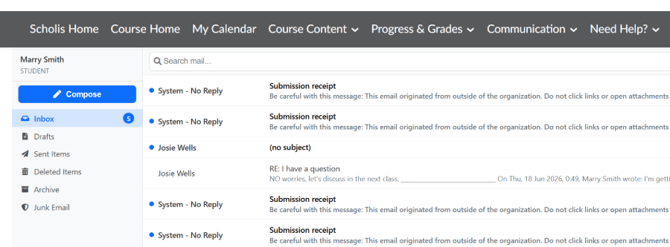
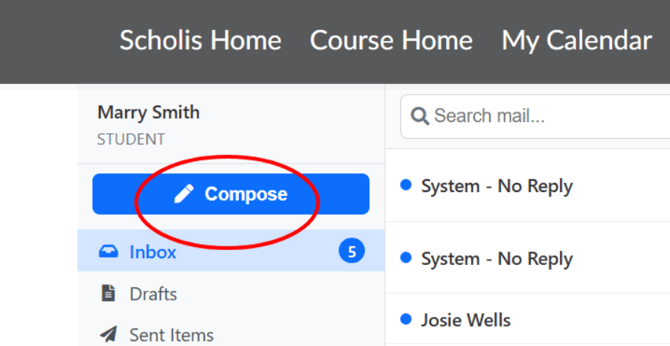
- To compose a new message, look for and click the "Compose" button.
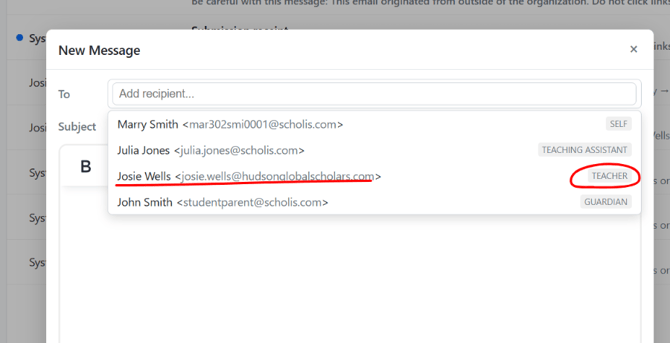
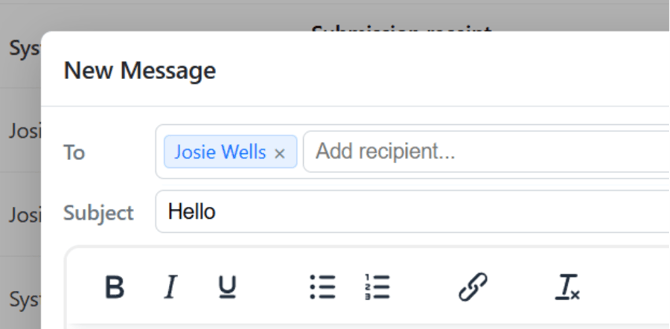
- In the "To" field, search for your teacher's name by typing it. A list of suggestions will appear — click your teacher's name to add them as a recipient.
- In the "Subject" field, type a clear, descriptive subject line for your message.
- In the message body, type your question or message clearly and professionally.
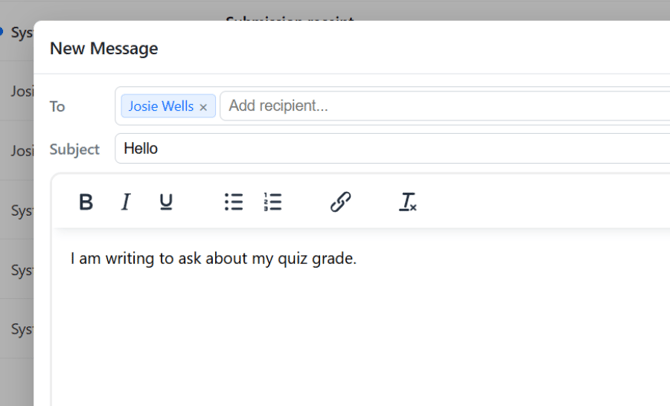
- Include your name and course name in the body of the message so your teacher can identify you quickly.
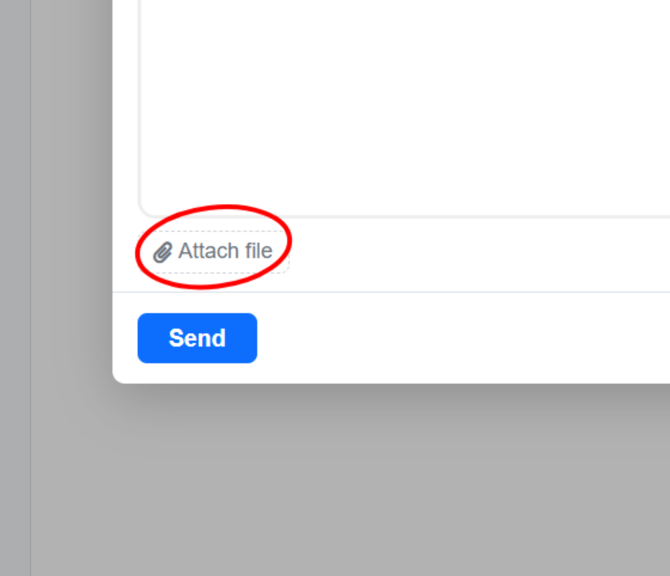
- If you need to attach a file (e.g., a document or screenshot), look for an attachment or paper clip icon and click it to upload your file.
- Review your message for spelling and clarity before sending.
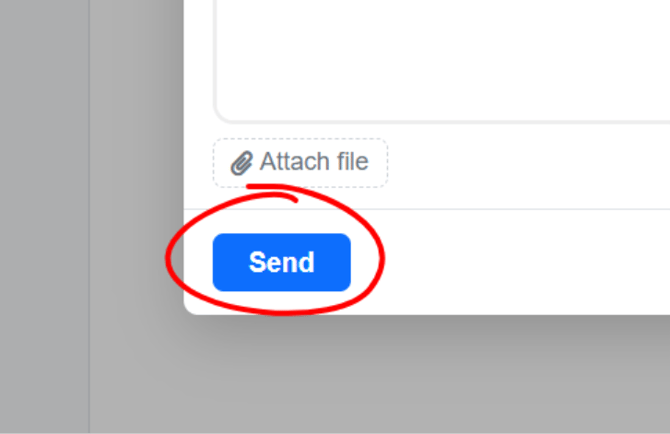
- Click "Send" to send your message.
- Your teacher will typically respond within 24 business hours. Check your email inbox regularly for their reply.
NOTE: This is an internal email system — emails sent here are NOT delivered to external email accounts (like Gmail or Yahoo). Both you and your teacher must check the LMS email.
NOTE: Be professional and respectful in all communications. Start with a greeting ("Dear [Teacher Name],") and end with a closing ("Thank you, [Your Name]").
NOTE: If your issue is urgent, there is a live help/support option under the "Need Help?" menu.
NOTE: You will receive a notification (bell icon at the top of the page) when you have a new email message.