How to access course content video
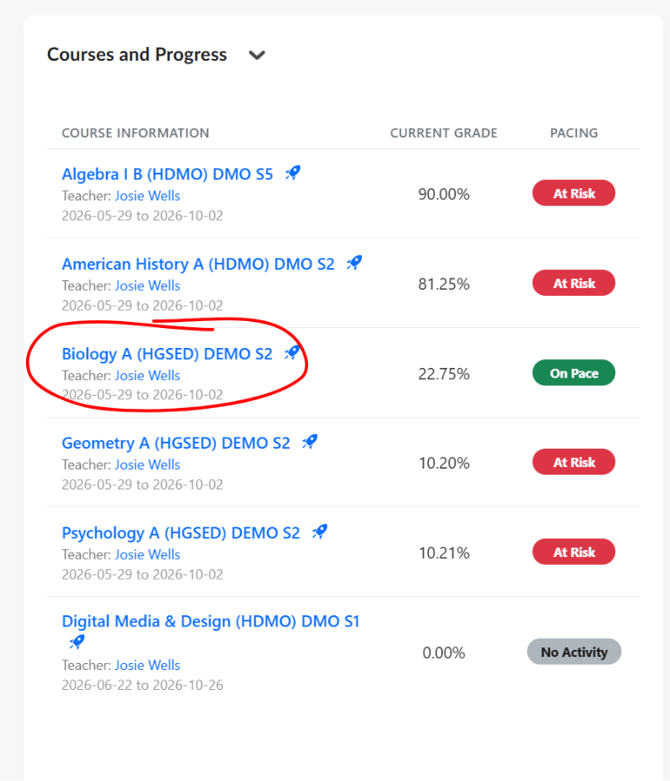
- From the Student Dashboard, click on the name of the course you want to open (found in the "Courses and Progress" section).
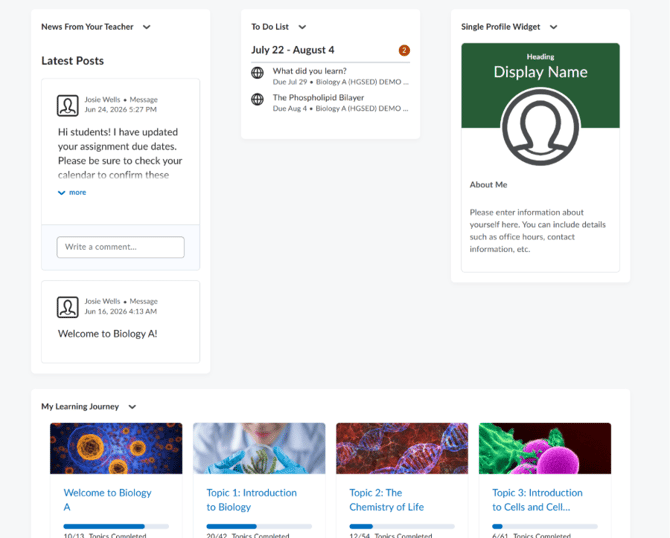
- You will land on the Course Home page. Here you will see: a "To Do List" with upcoming tasks for this course, a "News From Your Teacher" section with teacher posts, a profile section where your teachers details will be held, and a "My Learning Journey" section showing all topics in the course.
- In the "My Learning Journey" section, you will see topic cards (e.g., Topic 1: Introduction to Biology). Each card shows a progress bar and how many topics are completed (e.g., 3/12 Topics Completed).
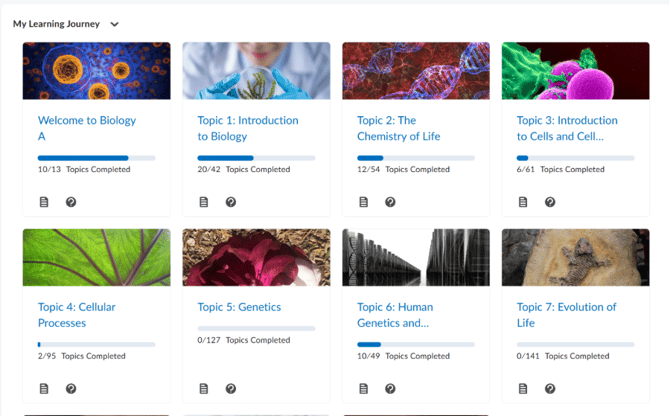
- Click on any topic card to open that topic's content.
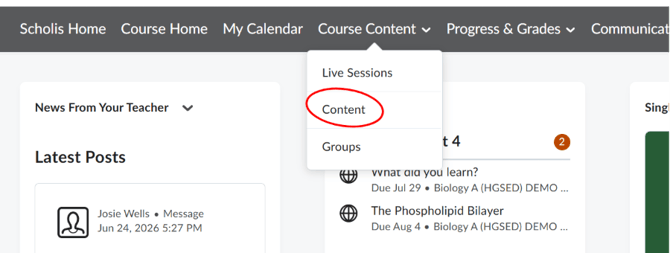
- Alternatively, click "Course Content" in the top navigation bar within the course, then select "Content" from the dropdown menu.
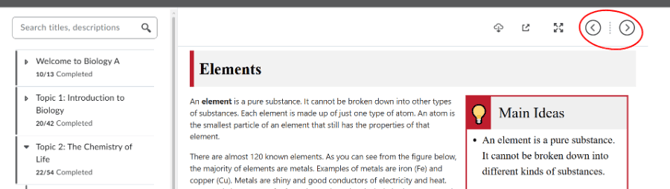
- The Course Content page opens with a left-side panel showing a list of all lessons and topics in the course. You can also search for a lesson using the "Search titles, descriptions" box at the top of the left panel.
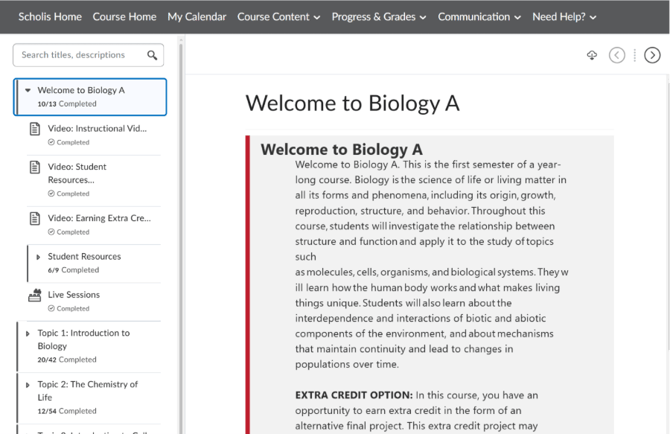
- Click on a topic name in the left panel to expand it and see the individual lessons inside.
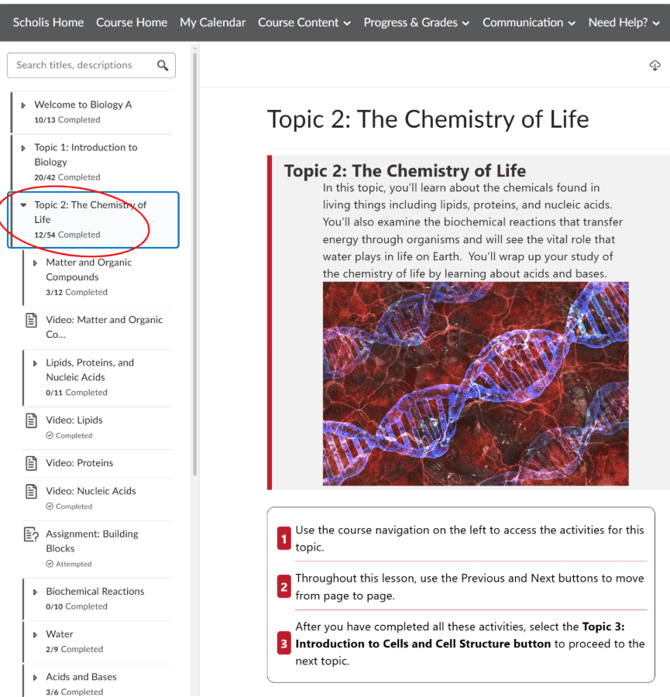
- Click on a specific lesson name to open it in the main content area on the right side of the screen.
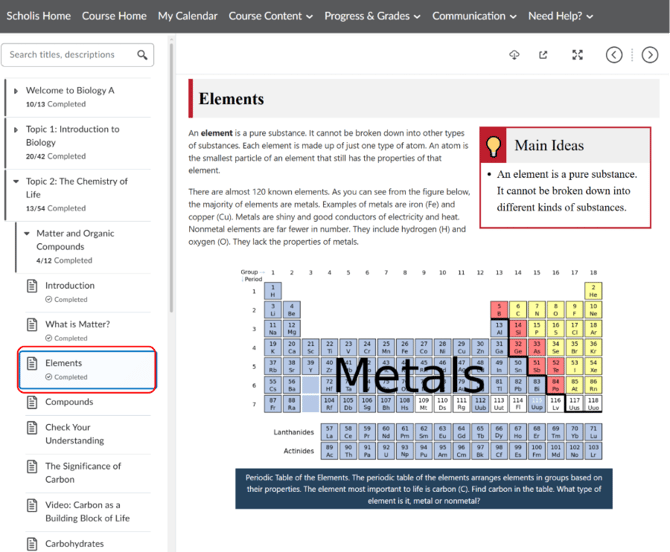
- Read through the lesson content. Some lessons may include videos — click the play button to watch them.
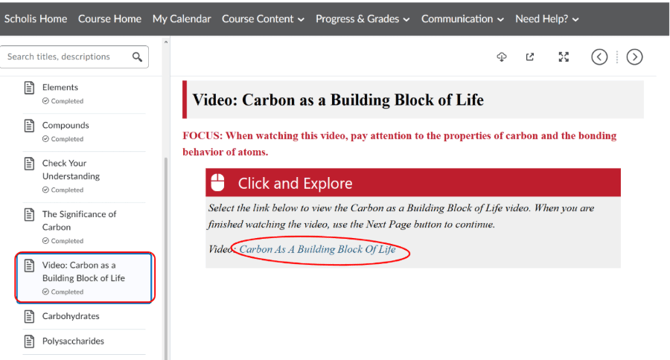
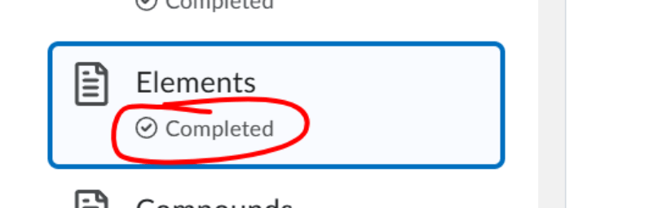
- When you finish a lesson, the system may mark it as "Completed" automatically. Look for a checkmark next to the lesson name in the left panel.
- Use the arrow buttons (< and >) at the top-right of the content area to navigate to the previous or next lesson.
- To return to the Course Home, click "Course Home" in the top navigation bar.
NOTE: Lessons must be completed in order in some courses. If a lesson is locked, you may need to finish the previous one first.
NOTE: The progress bar on each topic card on the Course Home updates as you complete lessons.