How to View Enrolled Assigned Courses.mp4
1. Log in to Scholis and go to the Scholis Home page: lms.scholis.com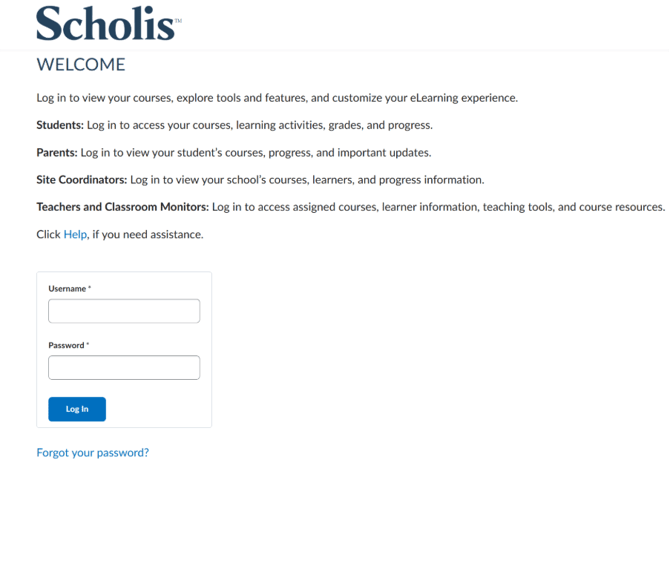
2. Locate the "My Courses" widget, which lists all course sections assigned to your account. 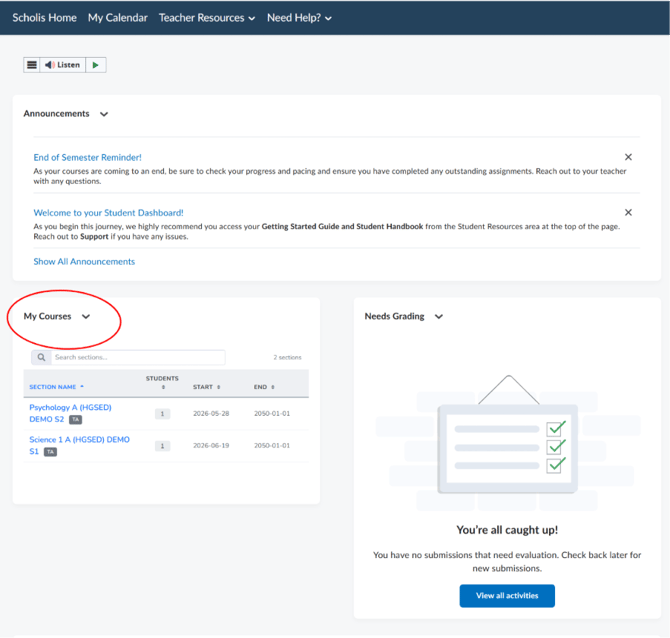
3. Each row shows the Section Name, number of Students, Start date, and End date. 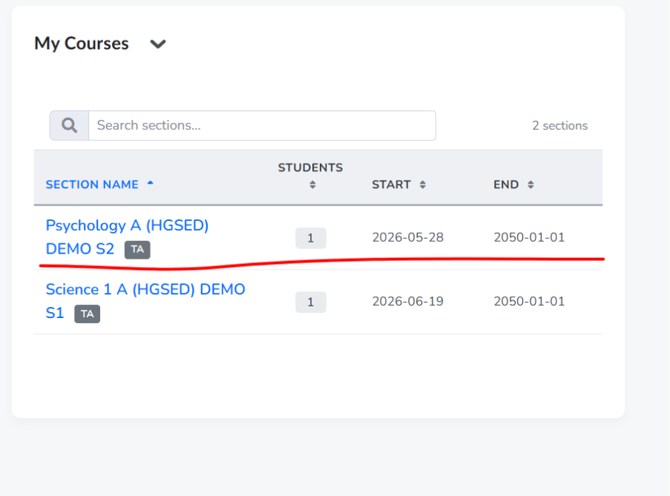
4. Use the "Search sections..." box to quickly find a specific course if you have many. 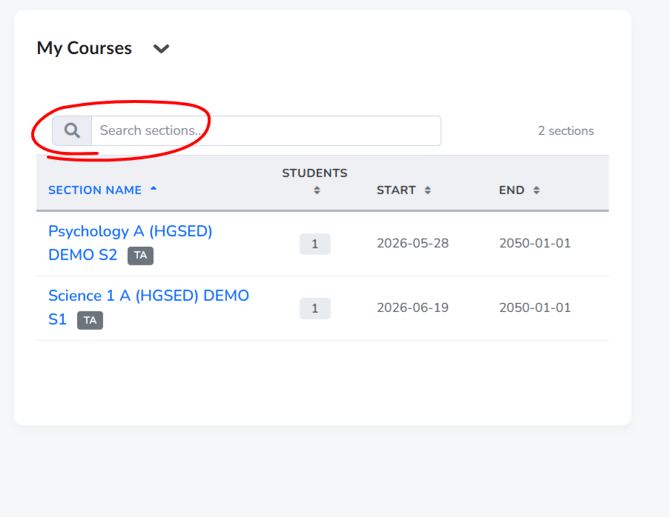
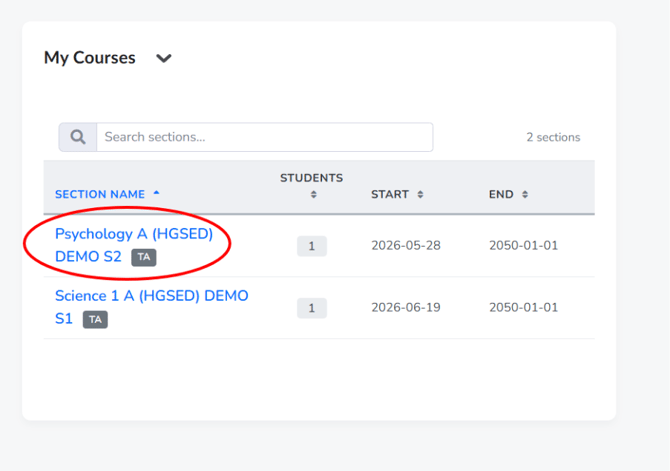
5. Click a section name (for example, "Psychology A (HGSED) DEMO S2") to open that course's homepage.