Getting Started
The Email tool lets you send messages to your students and colleagues, read incoming mail, and keep every conversation organized, all without leaving Scholis. This guide walks you through opening the tool, sending a new message, responding to messages you receive, and using folders and search to stay organized.
It is important to note that the Email tool:
- Students have received a special Scholis email that keeps their messages inside Scholis. Students can only send and receive messages inside of Scholis.
- This means:
- Students may only send messages to you from Scholis.
- Students may only read messages from you in Scholis.
- This means:
- Your email tool in Scholis is connected to your own HGS Outlook email. All emails sent and received will be viewable in Scholis and in your HGS Outlook email.
- This means:
- You must initiate a message to a student in Scholis for them to receive it. You cannot initiate a message from your HGS Outlook email.
- When students or parents respond to your message sent to Scholis, it will appear in both your Scholis email and in your HGS Outlook email. You may choose to respond from either location. The email will be recorded in both places.
- This means:
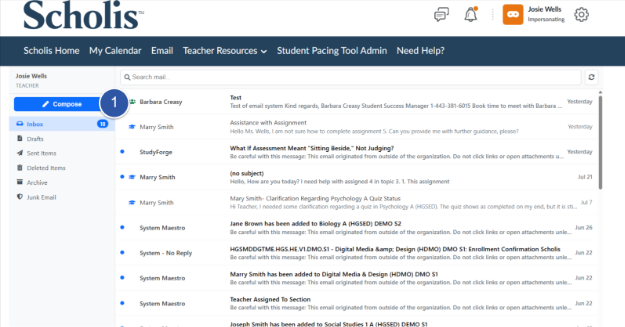
- Click Compose to open the New Message window.
- Under Add Students, choose a class from the Select a section... dropdown to automatically add every student in that section, or type an individual address in the To field instead.
- Enter a subject in the Subject field, then write your message in the text box below. You can format your text using the Bold, Italic, Underline, bulleted list, numbered list, insert link, and clear formatting buttons above the message box.
- You can attach a file if needed. Scroll to the bottom of the pop up window.
- Click Send when your message is ready to go, or click Discard if you decide not to send it.
Step 1: Open the Email Tool
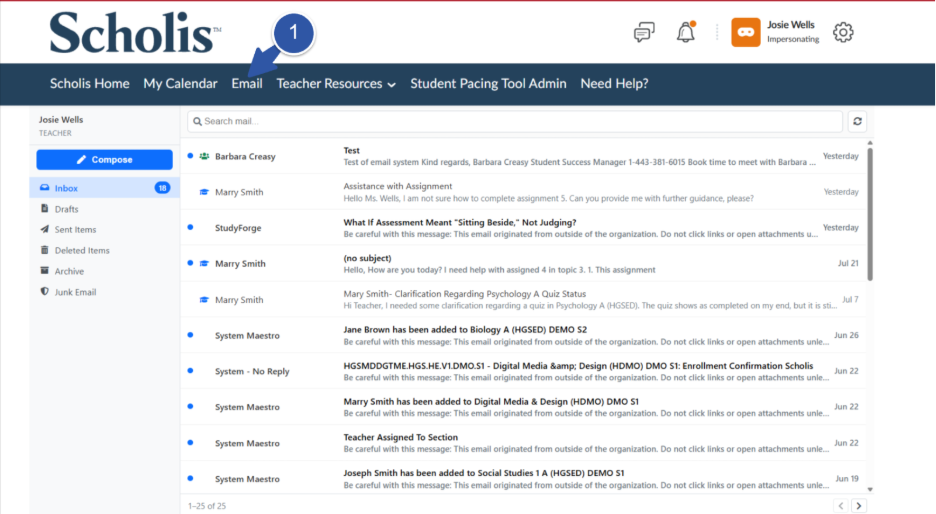
From any page in Scholis, click Email in the top navigation bar. Your inbox will open, showing a list of your messages with the sender, subject line, a short preview of the message, and the date it was received.
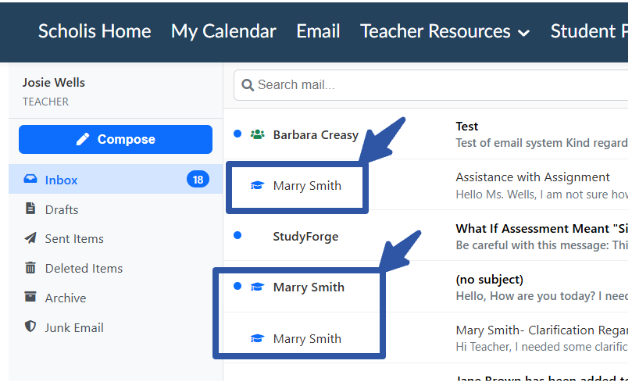
Responses from students will have a graduation cap icon. Remember that you will see messages from your students and parents in both Scholis and your HGS Outlook email. You can respond to them in either location and it will be saved in both places.
Step 2: Compose a New Message
Use Compose whenever you want to start a new conversation with students, or a whole course a section of students.
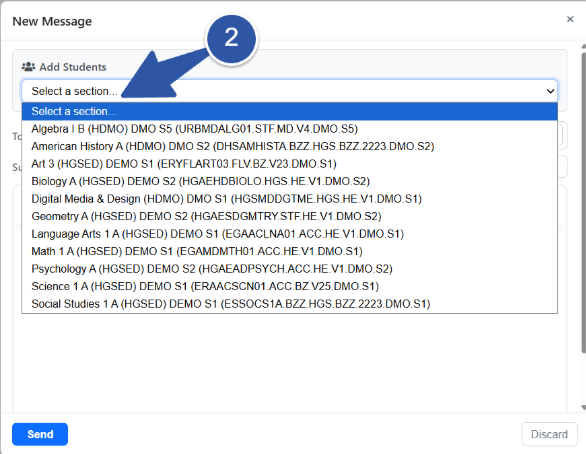
Important: Double-check the section or address you have selected before sending, since messages go out immediately once you click Send.
Step 3: Read and Respond to a Message
Your inbox list shows every message you have received. Here is how to open one and reply.
1. Click a message in the list to open it in the reading pane.
2. Review the From, To, and Date details, then read the message below.
3. Click Reply, Reply All, or Forward to respond, or click Read to change the message’s read or unread status.
Tip: Use Reply All when a message was sent to a group and you want everyone on that message to see your response.
Note: The archive icon in the toolbar files the message under Archive, and the trash-can icon deletes it. Click Back at any time to return to your message list.
Important: Deleted messages move to Deleted Items, so only delete a message once you are sure you no longer need it.
Step 4: Organize and Search Your Messages
Scholis keeps your Email tool organized into folders on the left side of the page, and gives you a search bar to find messages quickly. You will not see any other folders that you may have created in your HGS Outlook email.
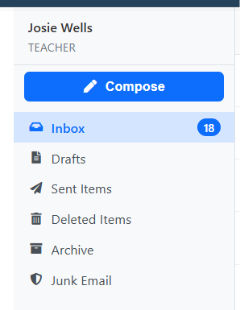 • Inbox – new and read messages you have received
• Drafts – messages you have started but have not sent yet
• Sent Items – messages you have already sent
• Deleted Items – messages you have deleted
• Archive – messages you have filed away to keep for later
• Junk Email – messages flagged as spam
Tip: Use the Search mail bar at the top of the page to quickly find a message by sender, subject, or keyword.