1. Top Navigation Bar
When you log in, you land on your organization's homepage. The top navigation bar has six items: Home, My Calendar, Academic Records, Community, Resources, and Need Help?.

2. Homepage Widgets
Your homepage is built from a few stacked widgets, scrolling top to bottom:
- Announcements — school-wide messages, with a "New Announcement" option. See SOP-LMS-012.

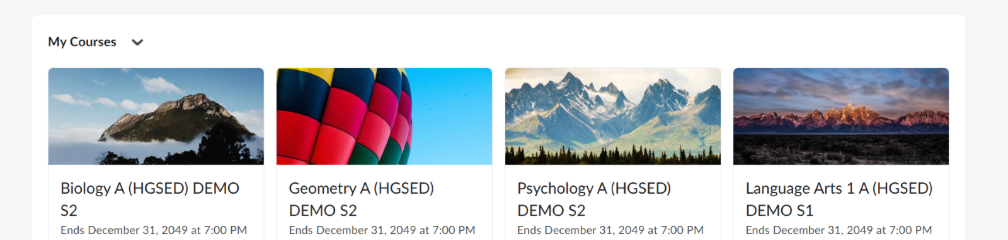
- My Courses — a tile grid of every course you're enrolled in or can preview. "View All Courses" shows the full list.
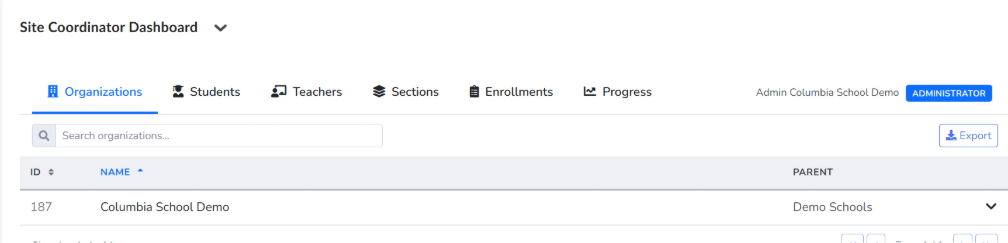
- Site Coordinator Dashboard — your main administrative control panel.
- Contact Customer Support with a description of the issue and any error messages.
- Include a screenshot of your homepage — it speeds up diagnosis significantly.
Troubleshooting
|
Issue |
What To Do |
|
The "ADMINISTRATOR" badge doesn't appear next to your name. |
Your account may not have Site Coordinator access provisioned yet — contact whoever manages account access for your organization. |
|
The Site Coordinator Dashboard widget is missing from your homepage. |
This widget only appears for accounts with Site Coordinator/Admin permissions. Confirm your access level, then contact platform support if it's still missing. |
|
A homepage widget looks empty or won't load. |
Refresh the page or try a different browser before escalating. |
Escalation Path
If an issue isn't resolved using the steps above: