Creating a New Group Category
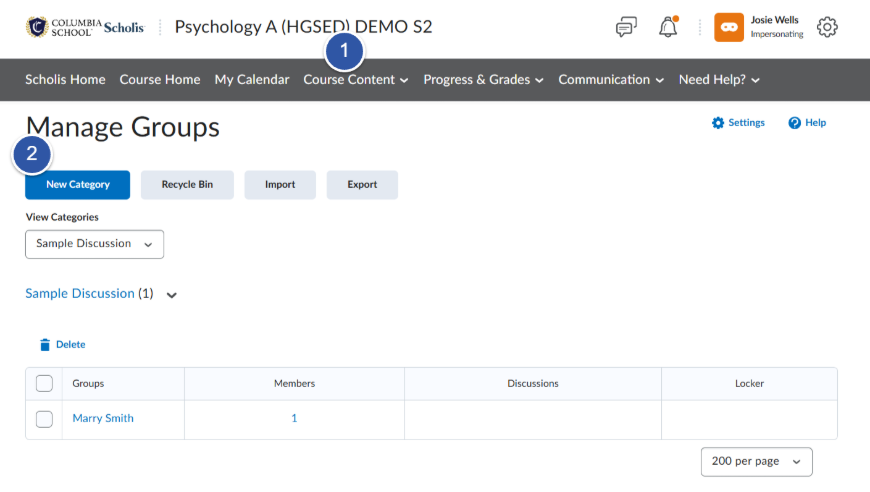
- From your course navbar, go to Course Admin (or Course Tools) and select Groups.
- Click New Category.
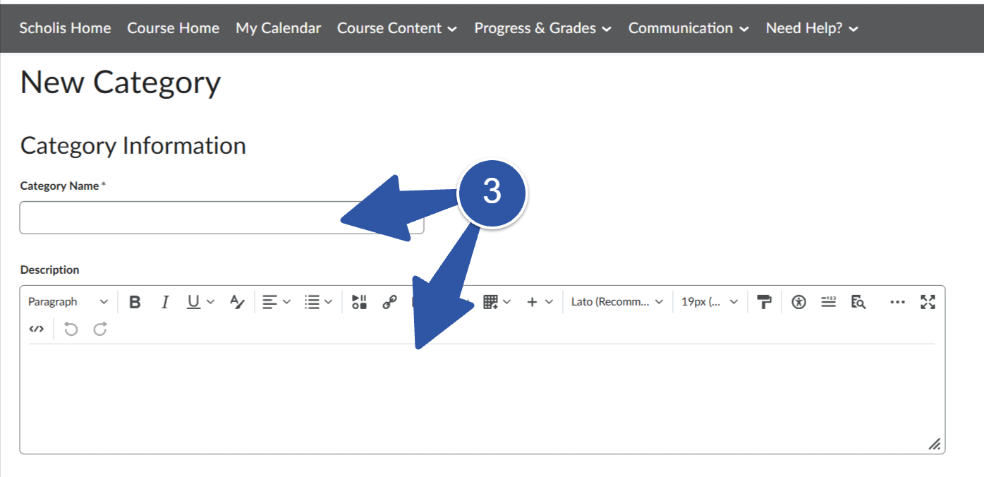
- Enter a Category Name and an optional Description.
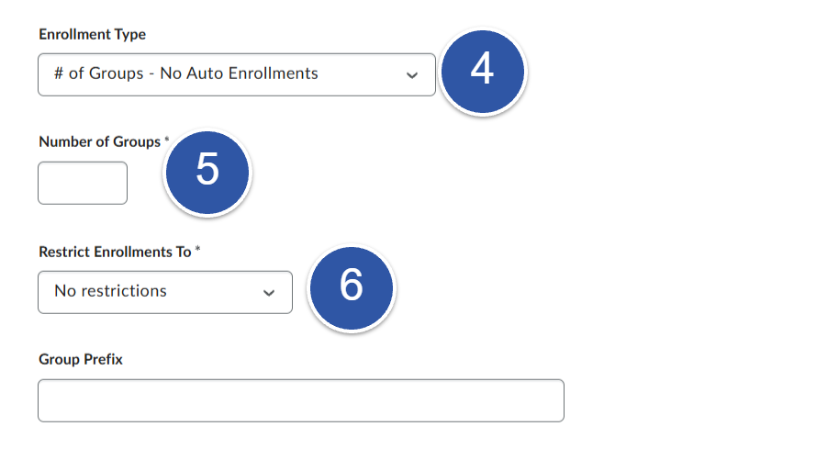
- Choose an Enrollment Type from the dropdown:
- # of Groups – No Auto Enrollments — you set the number of groups and add students manually.
- Groups of # — Brightspace creates enough groups to fit a set number of students per group.
- # of Groups — you set the number of groups and students are distributed automatically.
- Groups of # – Self Enrollment — students choose their own group up to a set cap.
- # of Groups – Self Enrollment — students self-select from a fixed number of groups.
- Enter the Number of Groups or Number of Users per group, depending on the type you chose.
- Set enrollment options such as Auto-enroll new users and Randomize users in groups if desired.
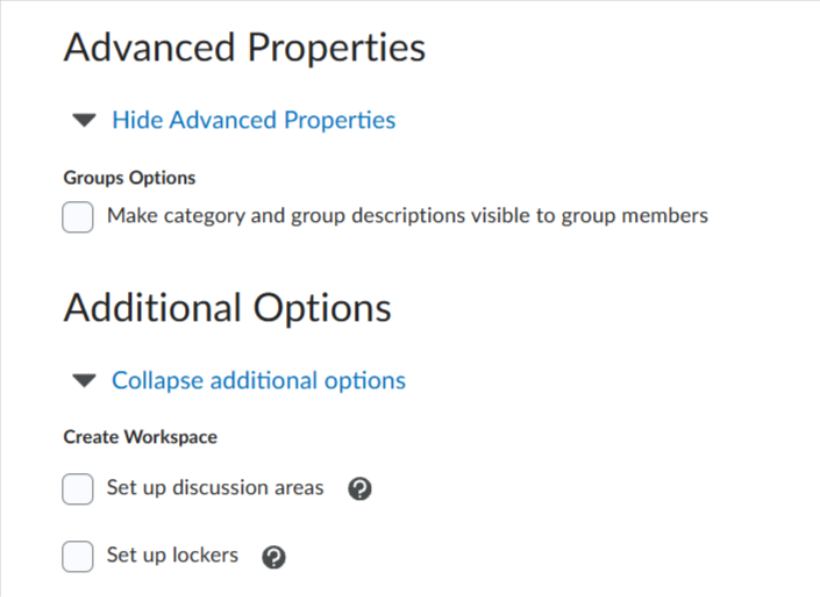
- In the same setup screen, check the boxes to create a linked Discussion area, Assignment submission folder, or Locker for each group.
- Click Save. If you created workspaces, follow the prompts to configure each one, then Save again.
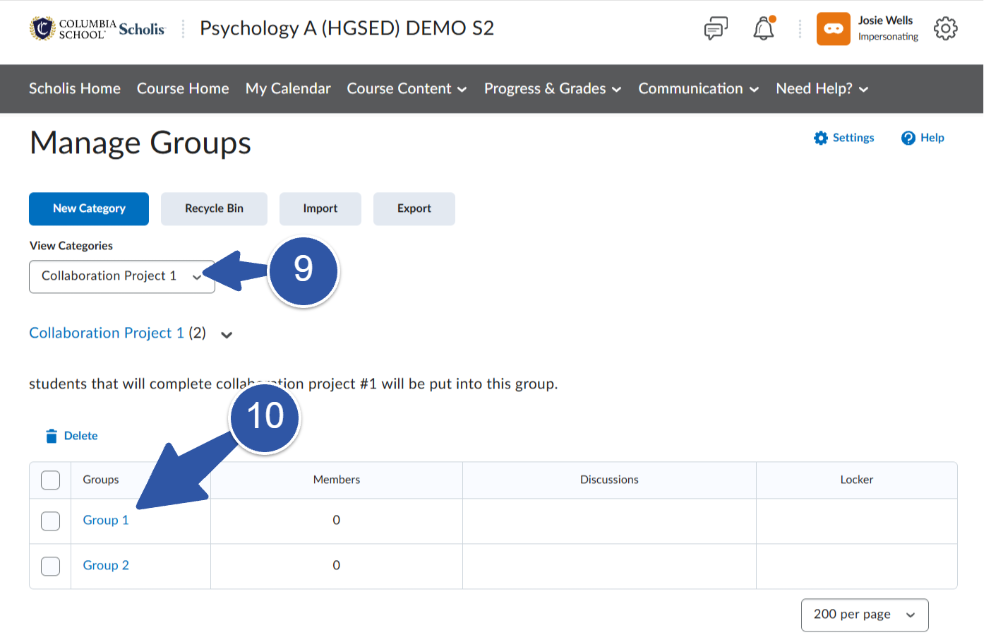
- On the Groups page, use the View Categories dropdown to select your category.
- Click Group Name to manually add or move students.
- Check or uncheck the boxes next to student names under each group, then click Save.
- To edit, click the dropdown arrow next to a category or group name and choose Edit Category or Edit Group.
- To remove groups, select Delete from the category dropdown, choose the groups to delete, and confirm.
Setting Up Workspaces (Optional)
Managing Enrollments
Editing or Deleting Groups
Tips
- Set up groups before linking them to graded activities so the connections carry through cleanly.
- Self-enrollment groups let students pick their own teams which is useful for projects, but you should set a clear deadline.
- Deleting a group category also removes its linked discussion forums and submission folders, so export any needed work first.