Getting Started
The Course Administration page is the central location for accessing the tools used to set up, customize, and manage your course. From this area, you can configure course settings, manage course tools, and access a variety of administrative features that support course facilitation.
Important: The tools available on the Course Administration page may vary depending on the permissions and features enabled by your organization. Some administrative tools may not be visible or accessible based on your assigned role. If you need access to additional tools or have questions about course permissions, please contact your Scholis administrator or the Help Desk for assistance.
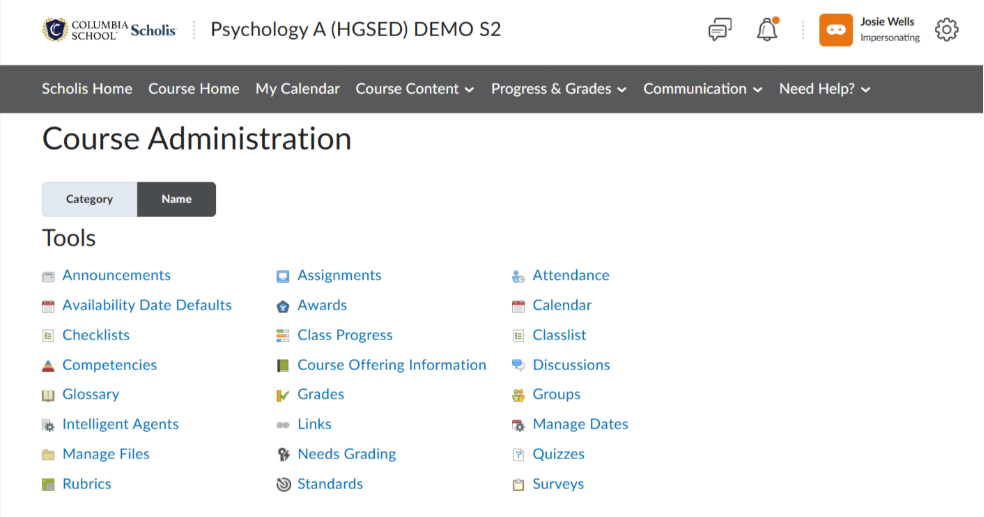
Checklists – Lets you create task lists students can check off to track their progress through required steps or activities.
Competencies – Defines and tracks measurable skills or learning outcomes, tying activities to specific competencies students must demonstrate.
Glossary – A course dictionary where you define key terms students can reference throughout the course.
Intelligent Agents – Automated rules that send emails or trigger actions based on student behavior (e.g., login inactivity, low grades, or course access).
Manage Files – The course file storage area where you upload, organize, and manage documents, images, and other course resources.
Rubrics – Scoring guides with criteria and performance levels used to assess and give consistent feedback on assignments, discussions, and other activities.
Assignments – Where you create submission folders for students to turn in work, and where you collect, grade, and provide feedback on it.
Awards – Lets you issue badges and certificates to recognize student achievements or milestones.
Class Progress – A dashboard tracking each student's activity, completion, grades, and engagement across the course.
Course Offering Information – The course's core settings, including name, code, description, and other identifying details.
Grades – The gradebook where you set up grade items, calculate scores, and manage students' overall grades.
Links – A place to create and organize external website links for students to access within the course.
Needs Grading (Quick Eval) – A centralized view showing all student submissions awaiting evaluation, letting you grade efficiently from one location.
Standards – Aligns course content and assessments to external or institutional learning standards for tracking mastery.
Attendance – Tracks and records student attendance for sessions or class meetings.
Calendar – Displays course events, due dates, and important dates in a schedule students and teachers can view.
Classlist – The roster of enrolled students and instructors, used to view participants, email them, and check enrollment status.
Discussions – Forums where students and teachers post and reply to threaded conversations around course topics.
Groups – Tools for organizing students into groups for group work, discussions, or differentiated assignments.
Manage Dates – A single tool to view and bulk-edit the availability, due, and start/end dates for all course activities at once.
Quizzes – Where you build, deliver, and grade online tests and assessments with various question types.
Surveys – Lets you collect anonymous or attributed feedback and responses from students, often for non-graded input.