Overview
Intelligent Agents automatically send email to students when specific conditions are met—for example, when a learner hasn't logged in for a set number of days, or a grade falls below a threshold. By default, these emails can be sent from a generic system address called ‘system_noreply@hudsonglobal.brightspace.com’. Teachers must manually adjust this for each intelligent agent.
This guide walks you through adjusting your agent settings so that automated messages are sent from your own name and email address. This helps students recognize the message as coming from their teacher and reply directly to you.
Important Note: Teachers should change the Name and Email reply for each Intelligent Agent. This will ensure that when a student (or parent) replies to any communication sent by the Intelligent Agent the message is sent to you as the teacher.
Step 1: Open the Agent
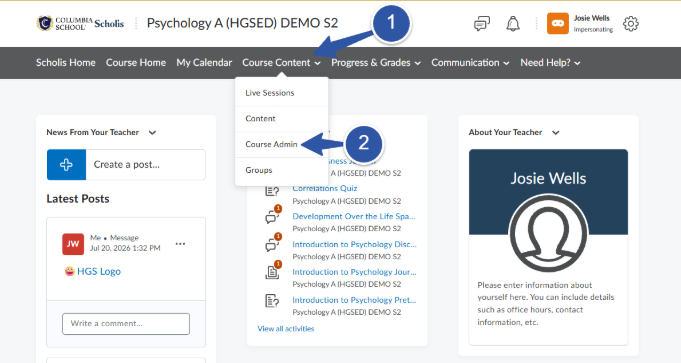
- From your course navbar, select Course Content.
- Select Course Admin.
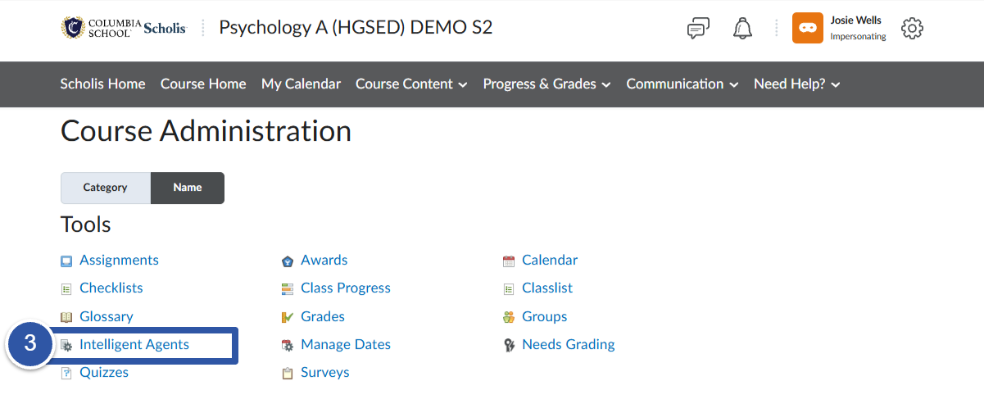
- Select Intelligent Agents from the available tools.
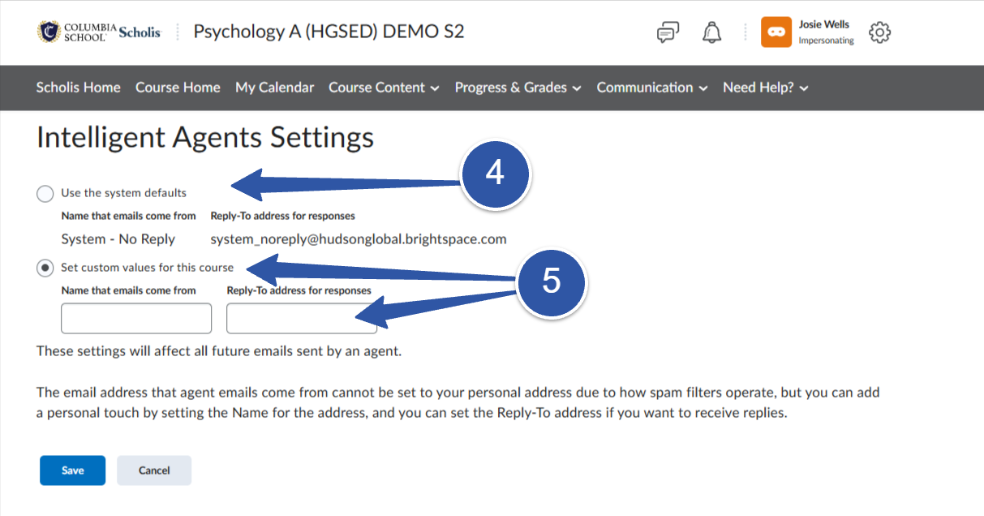
- By default, all Intelligent Agents will be sent from “System-No Reply” with an email address of “system_noreply@hudsonglobal.brightspace.com”. If a student replies to any messages, the teacher will not receive it.
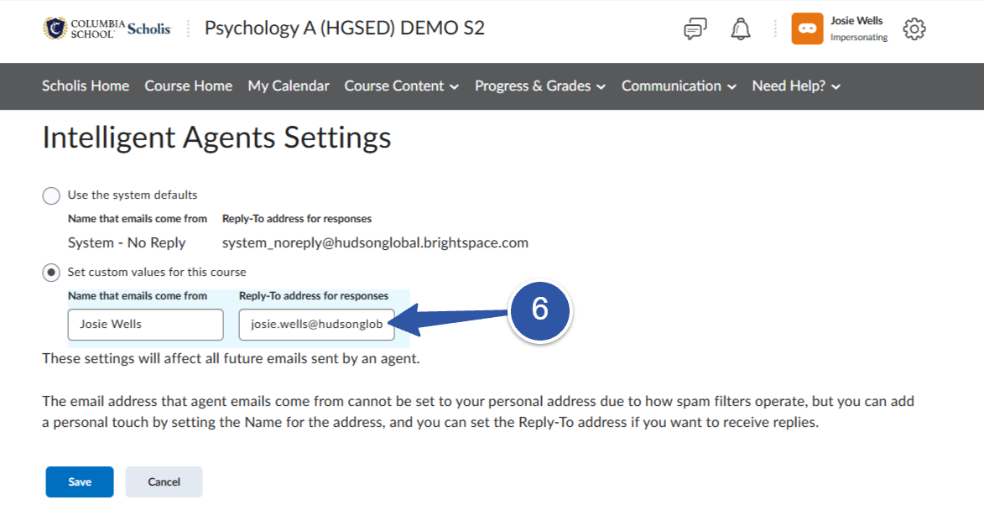
- Teachers must select the “Set custom values for this course”. You will enter your name and then your email in the fields.
- Enter your name and email address and then select “save”.
Step 2: Set the Email Sender