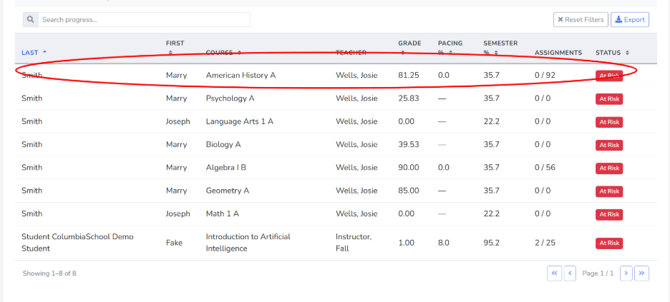
Site Coordinator Progress Tab.mp4
The Progress tab is the analytics view of the dashboard. It opens with a status summary bar tallying students into four buckets: Performing Well, Needs attention, At Risk, and Zero Work.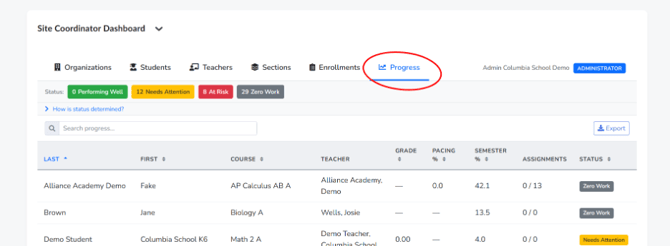
Clicking “How is status determined?” expands a reference table showing exactly how grade percentage and pacing percentage combine with how far along the semester is to produce each status.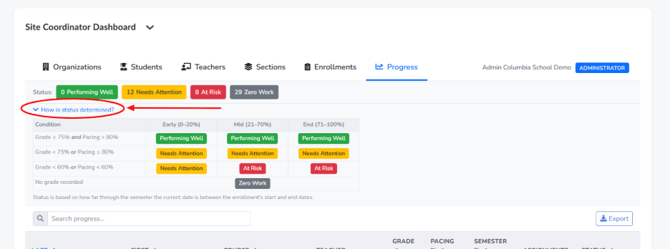
Unlike the other tabs, the status chips themselves are clickable filters — clicking, for example, “At Risk,” instantly filters the table below to only students with that status, and a “Reset Filters” button appears so you can clear it.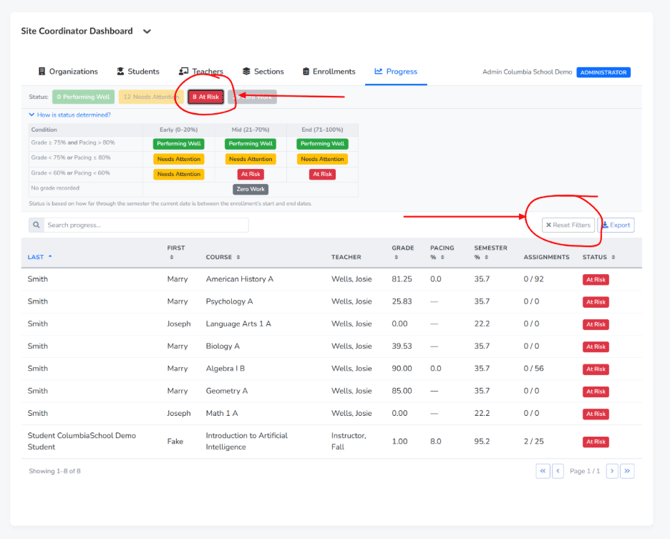
Below the summary, the searchable table lists each student's name, course, teacher, grade, pacing percent, semester percent, assignment completion, and status badge — this is generally the best starting tab when you want a school-wide pulse check before drilling into individual students or sections.